Settings
Open Settings from the Jupiter menu, or press Cmd+,. The window has five tabs.
Calendar
Section titled “Calendar”The Special Day Types list: the kinds of day you can mark on the calendar, such as Vacation or Travel, each with its own color. Use + and − to add or remove a type. See Special Days.
Appearance
Section titled “Appearance”Choose Jupiter’s theme: Europa, Io, Ganymede, or Callisto. The theme you pick stays put; it doesn’t follow your Mac’s light or dark mode. See Themes and Appearance.
General
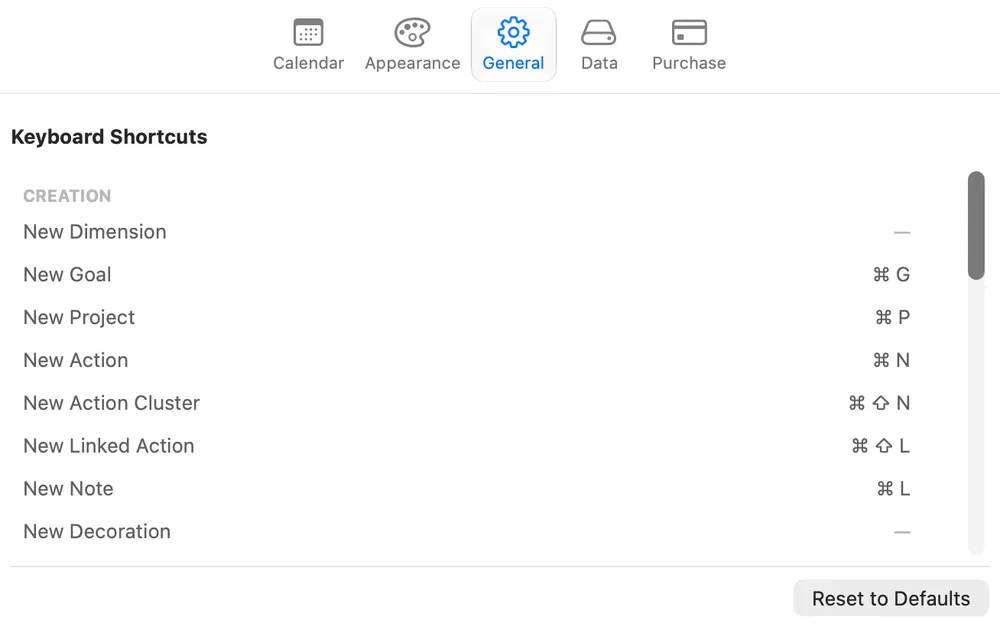
Section titled “General”The Keyboard Shortcuts list: every command you can give a shortcut to, grouped as Creation, Edit, Canvas, Navigation, and Other. Hover over a row and click the pencil to change its shortcut, or put them all back with Reset to Defaults. See Keyboard Shortcuts.
Two ways to replace everything on your map at once. Neither can be undone with Cmd+Z.
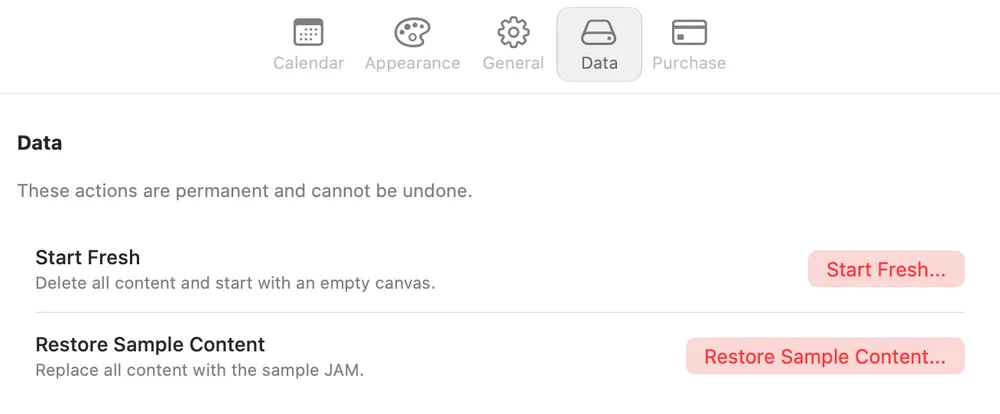
Start Fresh… clears your map and leaves four empty Dimensions. Before it does, Jupiter saves a snapshot named “Before Start Fresh” with the date and time, so you can change your mind later from the Snapshots panel. Your other saved snapshots stay too, unless you tick Also delete all snapshots in the confirmation; then everything goes, and no safety snapshot is made.
Restore Sample Content… replaces your map with the sample plan Jupiter came with.
Both reset your Special Day types and keyboard shortcuts to their defaults. Your theme stays as it is.
Purchase
Section titled “Purchase”Where you can see whether Jupiter is on its free trial or unlocked, and buy or restore Unlock Jupiter. What the tab says depends on where you are:
| What you see | What it means |
|---|---|
| Trial not started | You haven’t started your 30-day free trial. Until you do, your map is view-only. |
| Trial — N days left | Your trial is running. Everything works. The tab shows the date it ends. |
| Trial ended | Your 30 days are up. Your map is still there to view and export; unlock Jupiter to edit it again. |
| Unlocked | You’ve bought Unlock Jupiter. Everything is yours. |
| Licensed — original purchase | You bought Jupiter before it became free to download. Everything is yours to keep. |
| Couldn’t check with the App Store | Jupiter couldn’t reach the App Store. It stays fully usable meanwhile, and tries again the next time you open it. |
| Checking with the App Store… | Jupiter is checking, usually for a moment after it opens. It’s fully usable while it does. |
During the trial states, the tab also has these buttons:
- Start 30-Day Free Trial (before you’ve started). Starting the trial is free, and nothing is charged when it ends.
- Unlock Jupiter, with the price: a one-time purchase that unlocks editing for good, with no subscription.
- Restore Purchases, if you’ve already bought Jupiter with your Apple Account, on this Mac or another one.
Apple’s own purchase or sign-in window confirms each purchase.
At the bottom, Check Again asks the App Store for your status again. Use it after you’ve bought Jupiter on another Mac, or when an Ask to Buy request has just been approved. If the tab says it couldn’t check, the button reads Sign In to the App Store… instead: sign in, make sure you’re online, and click it.
The trial belongs to your Apple Account, not to one installation, so reinstalling Jupiter doesn’t restart it. For more on buying and the trial, see Support.