Keyboard Shortcuts
Every shortcut on this page except the last section can be changed to suit your hands. The tables show the defaults, grouped the way Settings lists them. A dash means the command has no shortcut until you give it one.
Creation
Section titled “Creation”Each New command creates inside the container you’ve selected (click a Dimension, Goal, or Project header first).
| Command | Default |
|---|---|
| New Dimension | — |
| New Goal | Cmd+G |
| New Project | Cmd+P |
| New Action | Cmd+N |
| New Action Cluster | Shift+Cmd+N |
| New Linked Action | Shift+Cmd+L |
| New Note | Cmd+L |
| New Decoration | — |
| Command | Default |
|---|---|
| Find | Cmd+F |
Canvas
Section titled “Canvas”| Command | Default |
|---|---|
| Jump to Today | Cmd+T |
| Zoom In | Cmd+= |
| Zoom Out | Cmd+– |
| Actual Size (back to 100%) | Cmd+0 |
Navigation
Section titled “Navigation”These move the twelve-month window.
| Command | Default |
|---|---|
| Previous Month | Cmd+← |
| Next Month | Cmd+→ |
| Previous Year | Shift+Cmd+← |
| Next Year | Shift+Cmd+→ |
| Command | Default |
|---|---|
| Save Snapshot | Shift+Cmd+S |
| Duplicate | Cmd+D |
| Repeat… | — |
| Delete Selected | Delete |
| Set Status: Pending | Cmd+1 |
| Set Status: In Progress | Cmd+2 |
| Set Status: Completed | Cmd+3 |
| Set Status: Cancelled | Cmd+4 |
| Set Status: Information | Cmd+5 |
| Select All | Cmd+A |
Select All selects everything in the Dimension you’re working in.
Changing a shortcut
Section titled “Changing a shortcut”Open Settings (Cmd+,) and go to General. Hover over a command in the Keyboard Shortcuts list and click the pencil that appears on the right. The shortcut is replaced by Press shortcut…; press the keys you want, and they’re set. Changed your mind? Click the ⓧ beside it to cancel and keep the old shortcut.
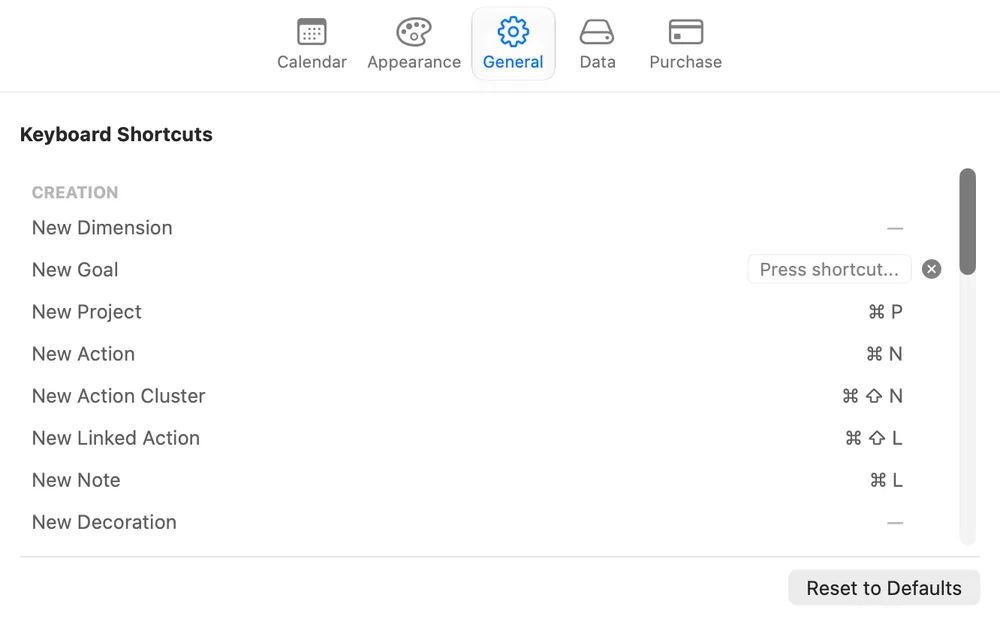
To give a command with a dash its first shortcut, such as Repeat… or New Dimension, do the same thing. Reset to Defaults, at the bottom, puts every shortcut back the way Jupiter shipped.
Restoring a snapshot also restores the shortcuts that were set when it was saved. See Snapshots.
Standard Mac shortcuts
Section titled “Standard Mac shortcuts”These work as they do in any Mac app, and aren’t in the Settings list.
| Command | Shortcut |
|---|---|
| Undo | Cmd+Z |
| Cut | Cmd+X |
| Copy | Cmd+C |
| Paste | Cmd+V |
| Settings | Cmd+, |
Hold Option while you drag an item to drag a copy and leave the original where it was.
While editing text
Section titled “While editing text”When you’re typing a title, a label, or a comment, Enter finishes and keeps the item selected; clicking away finishes and deselects. In a Note, Return starts a new line instead: click away to save the Note, or press Esc to discard your changes.