Selection, Moving, and Bulk Edits
Most of the time you’ll work on one item at a time. But plans shift in groups: a trip moves a week, a project slips, a set of tasks needs copying to next month. Jupiter lets you select several items and act on them together.
Selecting
Section titled “Selecting”- Click an item to select it.
- Shift-click another item to add it to the selection, or to remove it.
- Drag across empty canvas to draw a selection box. Everything the box touches is selected, containers included, even across different Goals and Projects.
- Cmd+A selects everything in the Dimension you’re working in.
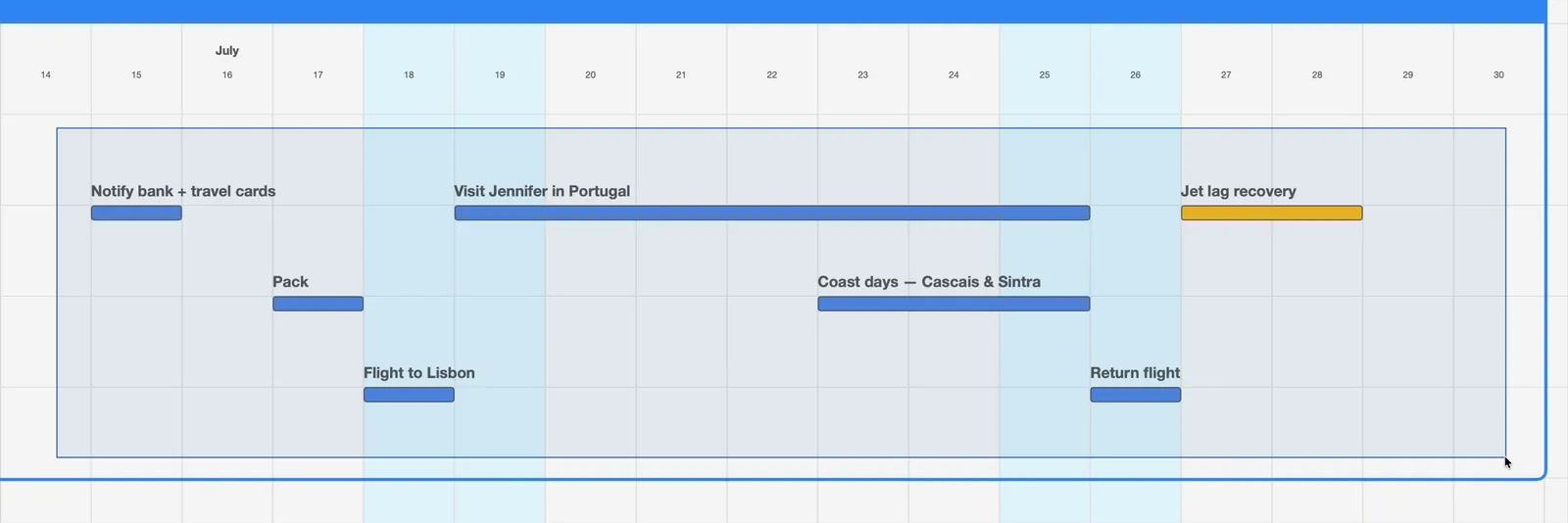
When you let go, each selected item shows an outline.
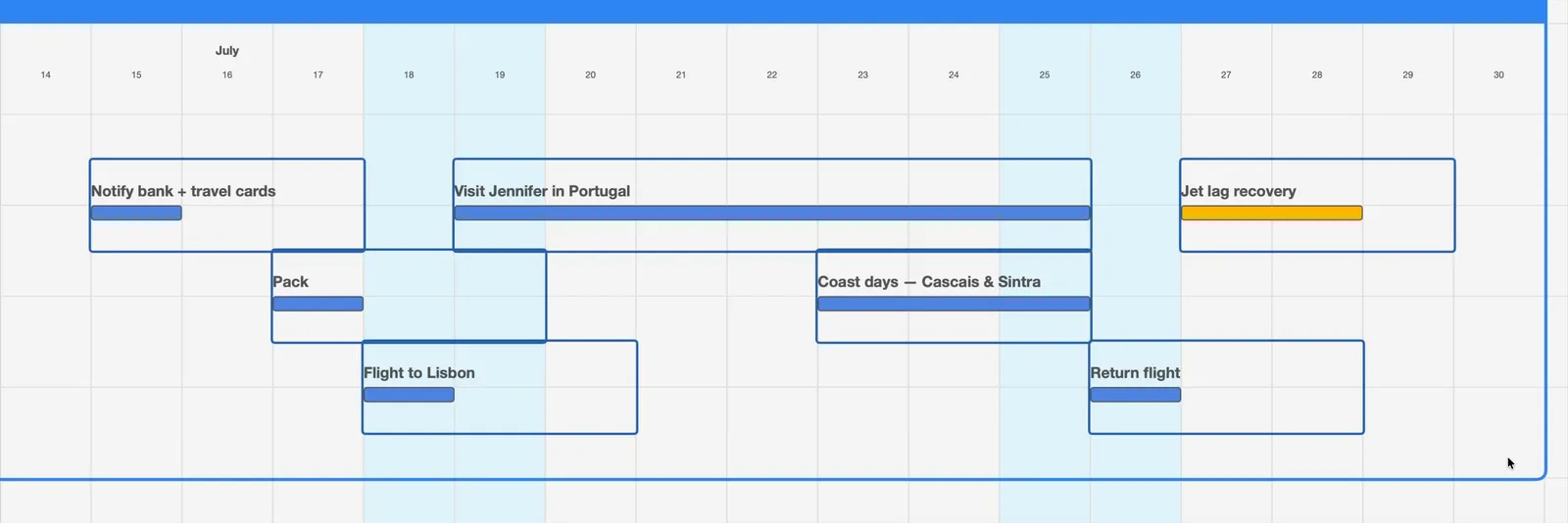
Click an empty part of the canvas to clear the selection.
Moving and rescheduling together
Section titled “Moving and rescheduling together”Drag any selected item and the rest of the selection comes with it. Everything shifts by the same number of days and keeps its place relative to the others, so a week of work moves as a week of work.
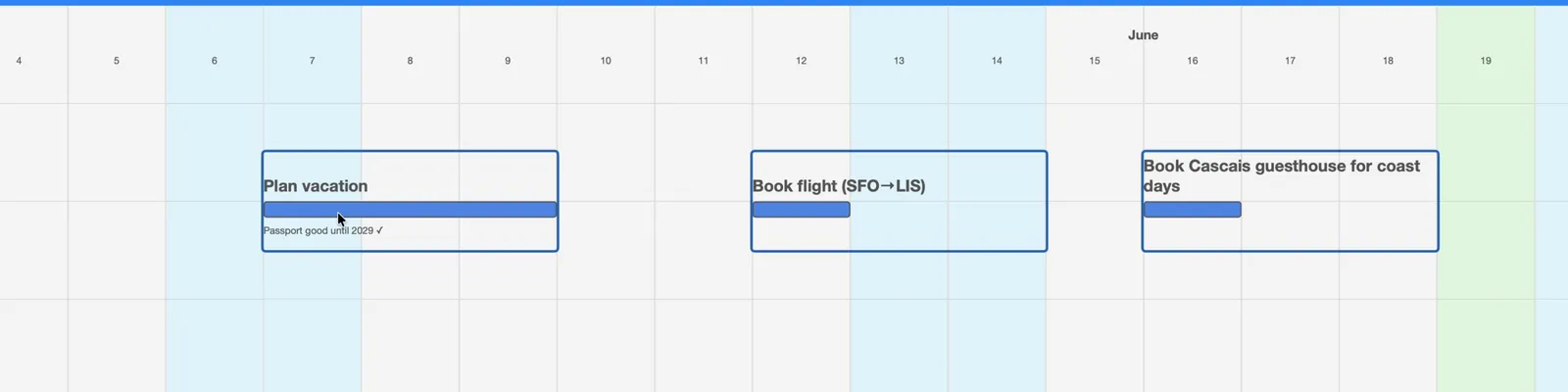
A group moves only if everything in it fits where you drop it, and only within one container. If it can’t, the group snaps back to where it was and Jupiter tells you “Some items in the group don’t fit.” Move the items in smaller groups instead.
Setting a container’s dates
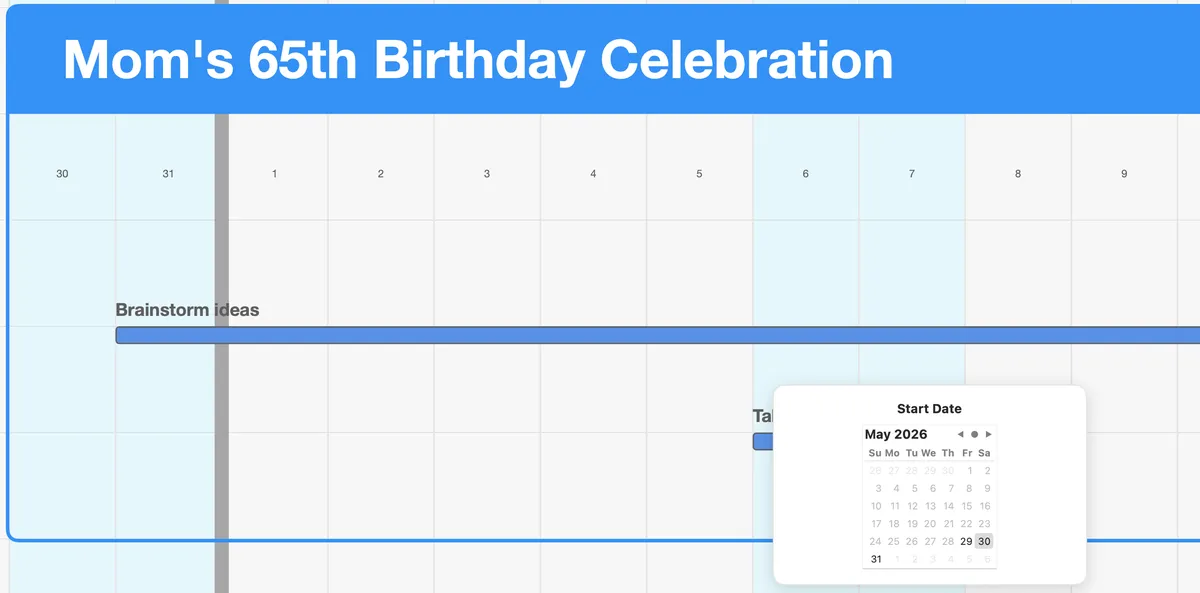
Section titled “Setting a container’s dates”To give a Dimension, Goal, or Project exact dates, right-click its header. The first two rows show its Start and End dates.
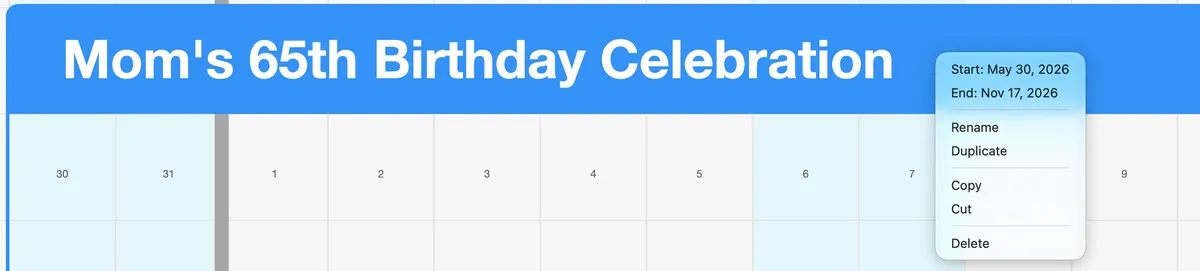
Choose either one, then pick the new date from the calendar.
Right-clicking a selection
Section titled “Right-clicking a selection”Right-click any item that’s part of the selection, and the menu acts on all of it. Set a status, duplicate, or delete the whole group at once. When the selection is all Action Clusters and Linked Actions, the status choice is Set All Pending, which resets every day and unit.
If you right-click an item outside the selection, the selection changes to just that item.
Duplicating
Section titled “Duplicating”Choose Duplicate (Cmd+D) from the right-click menu or the Item menu. It works on items and on containers. The copy lands just below the original on the same dates, with its status reset to Pending, and it’s selected, ready to drag to where it belongs. If there isn’t room below, Jupiter says so and doesn’t duplicate.
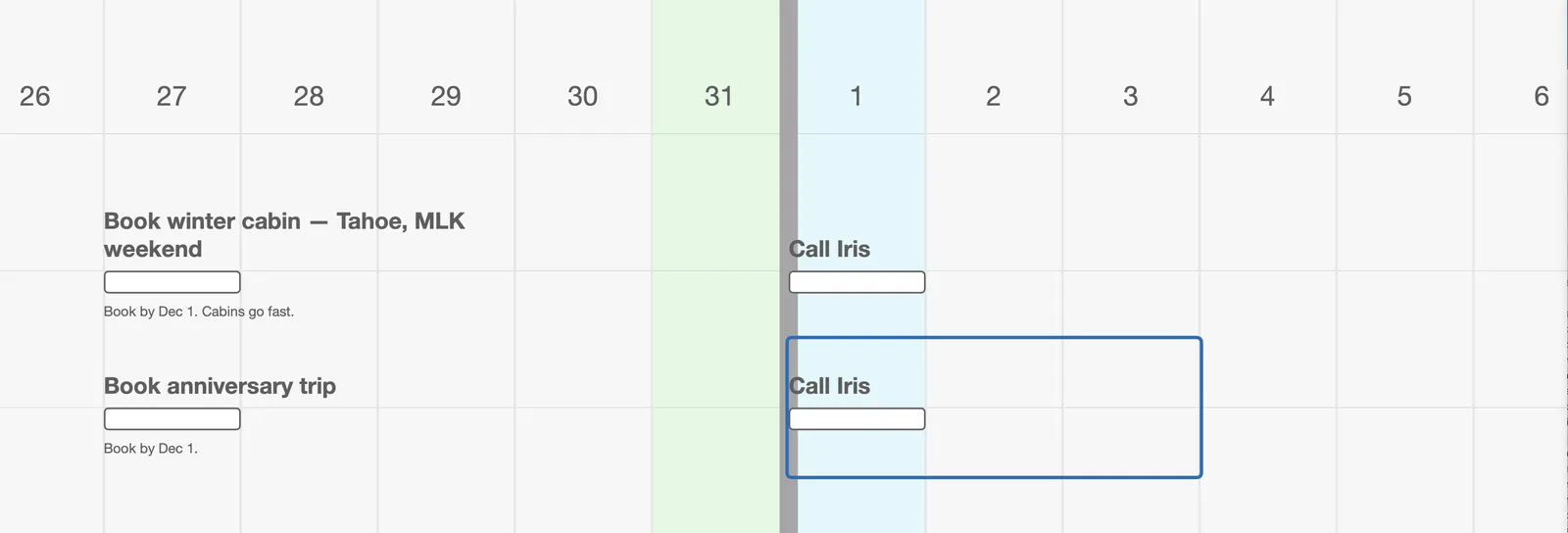
You can also hold Option while you drag anything on the canvas: the original stays put and a copy goes where you drop it.
Cut, copy, and paste
Section titled “Cut, copy, and paste”The usual commands work on the canvas: Cut (Cmd+X), Copy (Cmd+C), and Paste (Cmd+V). A paste lands in the middle of the window, or as close to it as there’s room. To paste in a particular spot, right-click there and choose Paste.
Goals and Projects can be cut and pasted, along with everything inside them. Dimensions can’t, but you can duplicate one.
Deleting
Section titled “Deleting”Select what you want to remove and press Delete, or right-click and choose Delete. Deleting a Dimension, Goal, or Project removes everything inside it too, so Jupiter asks first.
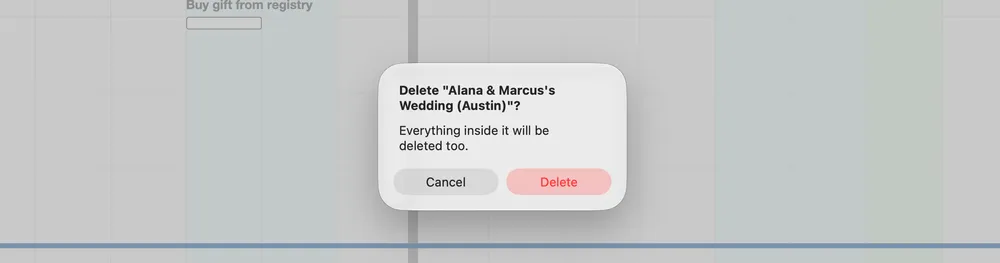
Changed your mind? Cmd+Z brings back whatever you deleted, containers included.
Try it
Section titled “Try it”Find a stretch of your plan that’s slipped, a few Actions that should have happened last week. Drag a box around them and move them all to where they’ll really happen. Your map just caught up with your life in one move.
Next: Search →