Search
A year-long map gets big. When you know what you’re looking for but not where it is, search for it.
Searching
Section titled “Searching”Click the magnifying glass in the toolbar, or choose Edit ▸ Find (Cmd+F). A search panel opens on the left of the canvas. Type what you’re looking for and press Return. Search runs when you press Return, not as you type, so take your time with the words.
Capitals don’t matter, and part of a word is enough: “run” finds “Run — Tue/Thu,” “Long run — Sat,” and “runs.” It also finds “crunch,” so if you get more than you wanted, add a word or two.
What gets searched
Section titled “What gets searched”Search looks at the words on your map:
- The titles of Dimensions, Goals, Projects, Actions, Action Clusters, and Linked Actions
- Comments on plain Actions
- The text of Notes on the canvas
- Milestone labels
It doesn’t search comments on Action Clusters or Linked Actions, Notes on Vision Boards, or Special Day names.
Reading the results
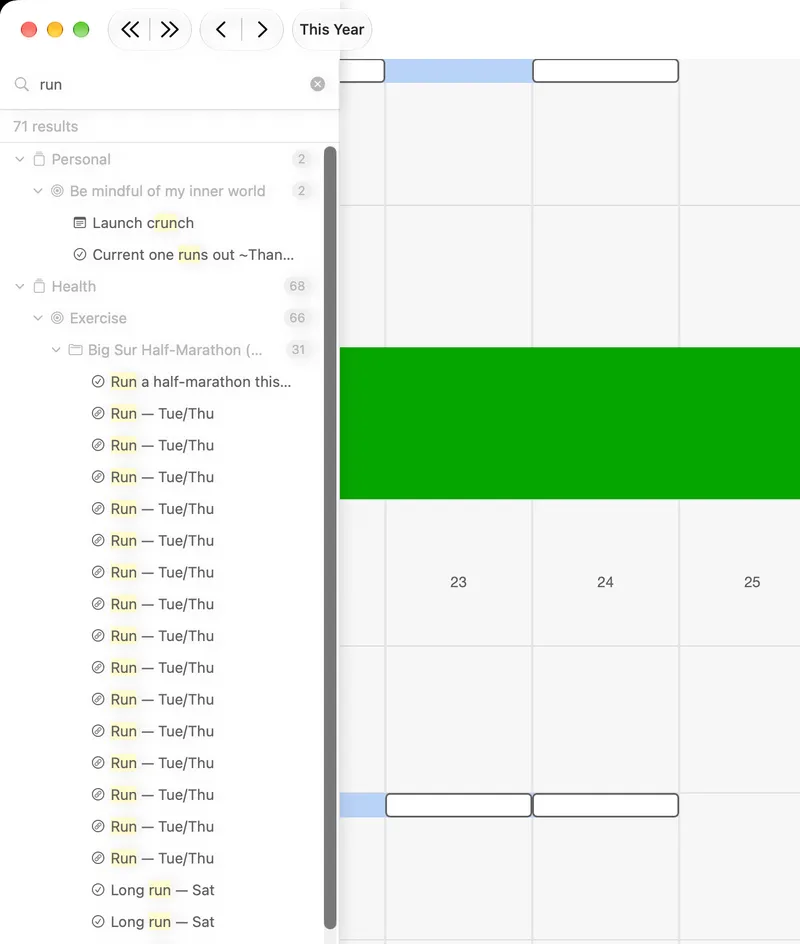
Section titled “Reading the results”The panel shows how many results there are, then the results themselves, arranged the way your map is: each match sits under its Dimension, Goal, and Project, so you can see where it lives before you go there. The matching words are highlighted. Each parent shows how many matches are inside it and can be collapsed with its triangle; parents that don’t match themselves are dimmed. If nothing matches, the panel says No results found.
Jumping to a result
Section titled “Jumping to a result”Click a result and the canvas glides to it and selects it. The panel stays open, so you can step through results one after another.
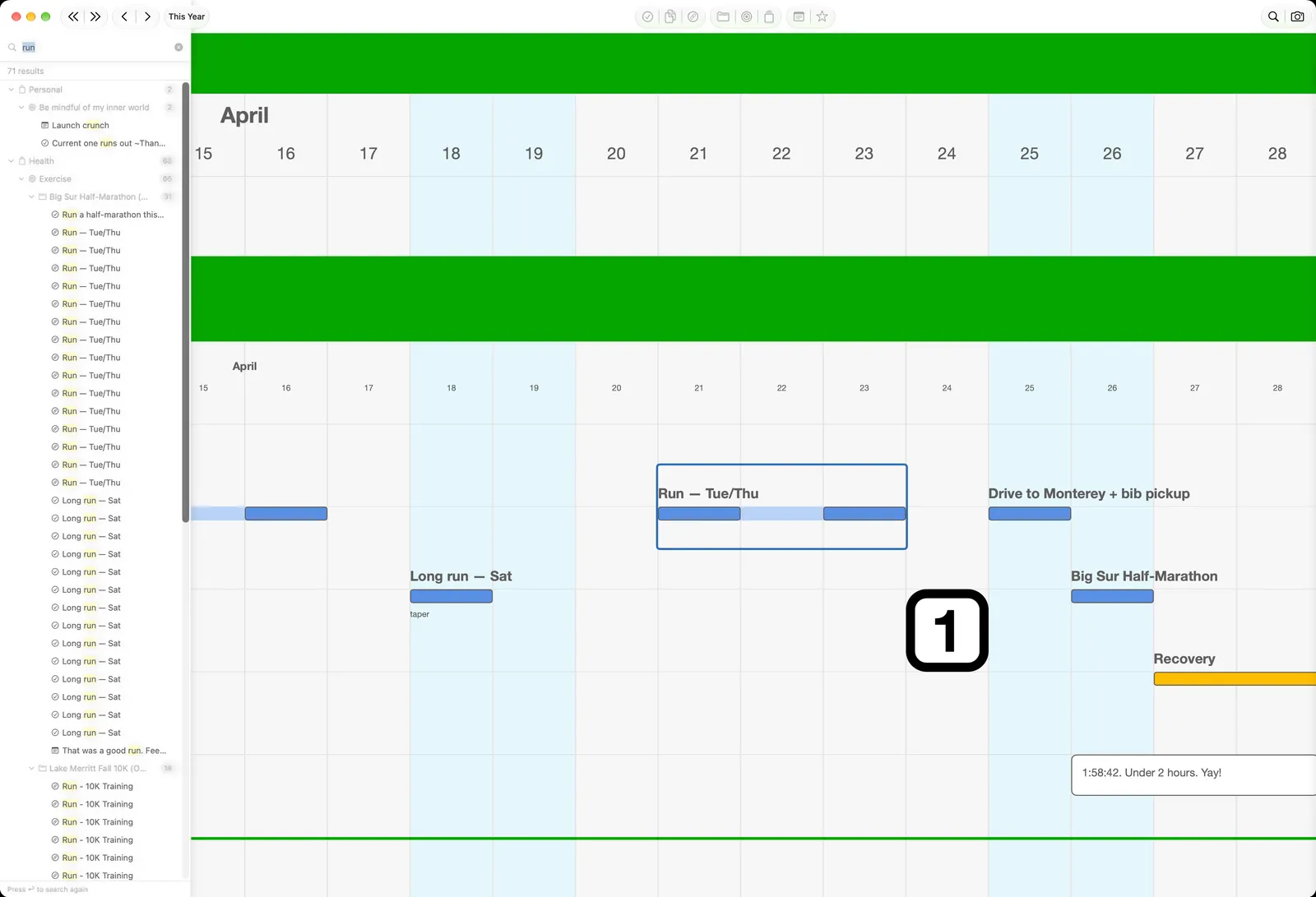
The × in the search field clears it so you can search again. To close the panel, press Esc.
Try it
Section titled “Try it”Search for a person’s name: a friend, a colleague, a family member. The results show every place they appear in your plan, across every part of your life, in one list. That’s a view no single calendar or task app can give you.
Next: Snapshots →