Themes and Appearance
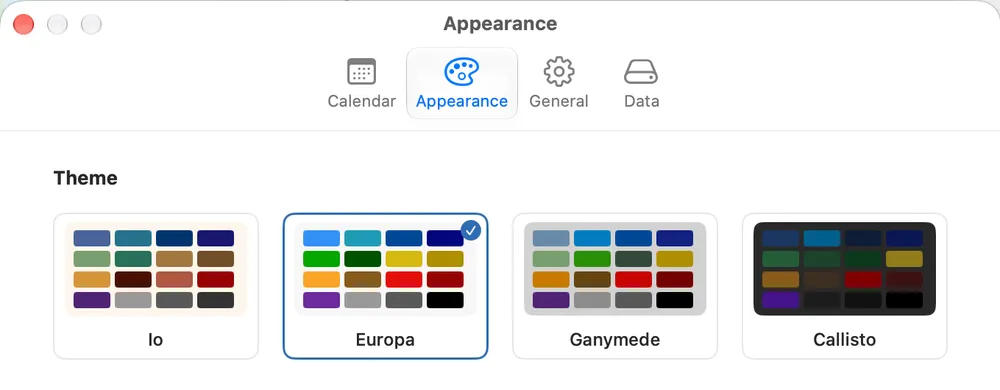
Jupiter is a place you’ll spend a lot of time, so it should look like a place you want to be. It comes with four themes, each named for one of Jupiter’s moons, and switching between them changes the whole canvas at once.
The four themes
Section titled “The four themes”- Europa, the default: clean and modern.
- Io: warmer and softer.
- Ganymede: muted and calm.
- Callisto: dark and contemplative.
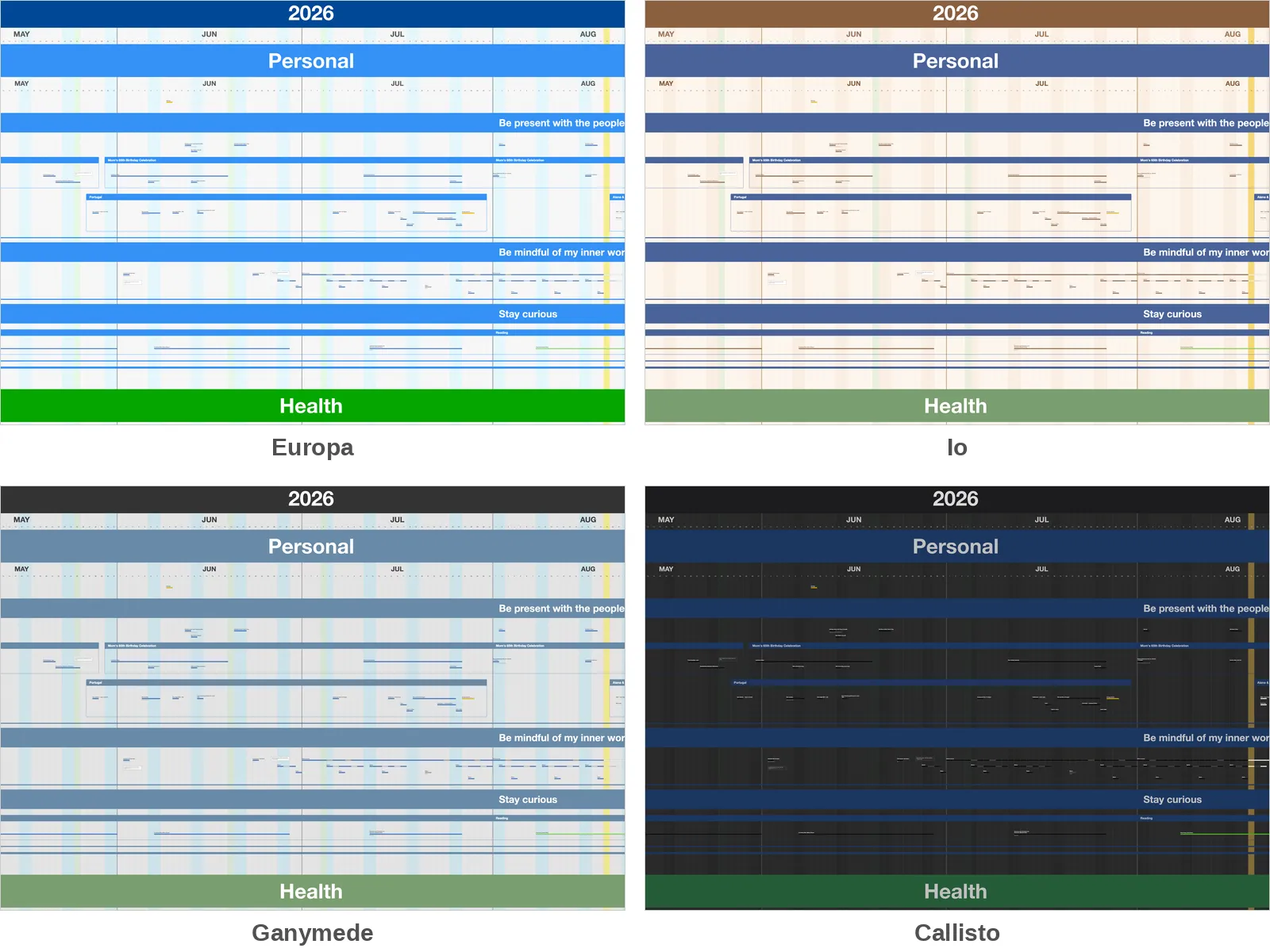
Switching themes
Section titled “Switching themes”Open Settings (Cmd+,), go to Appearance, and choose a theme. The canvas changes right away, and your choice is remembered.
The theme is always your choice: Jupiter doesn’t switch on its own when your Mac changes between light and dark mode.
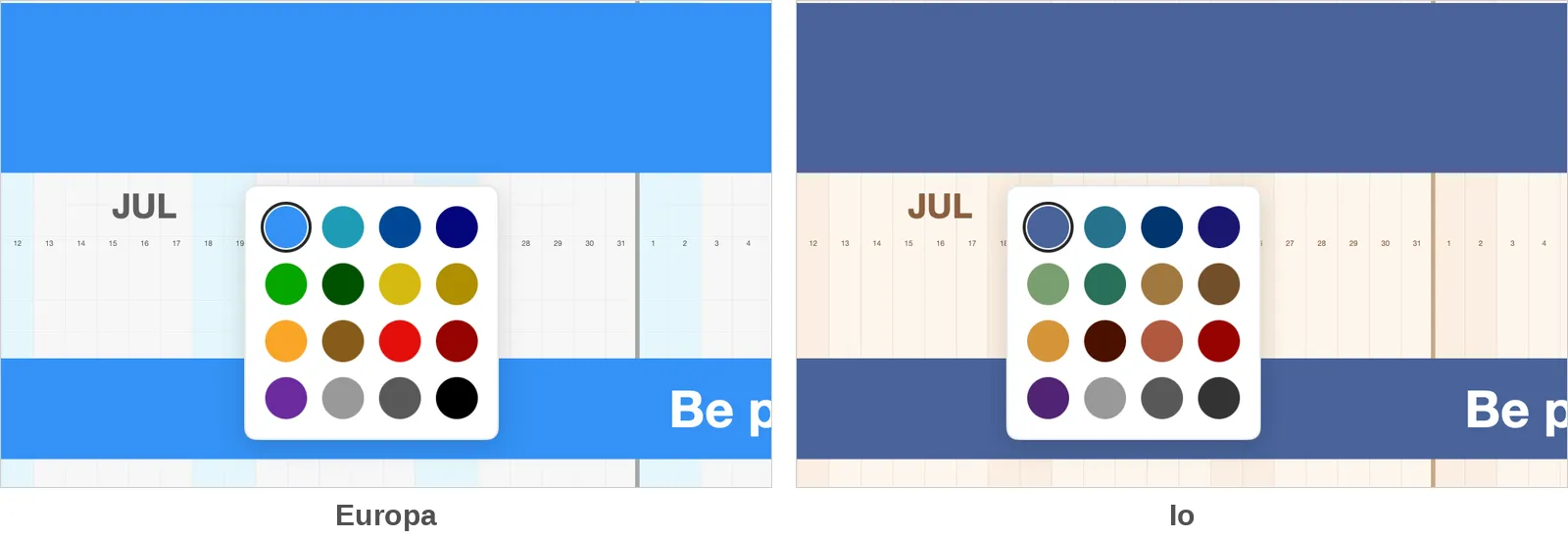
How colors carry across
Section titled “How colors carry across”Each theme has its own palette of 16 Dimension colors, designed to work together on that theme’s background. Your Dimensions keep their place in the palette when you switch, so a Dimension that’s blue in one theme becomes that theme’s version of blue in another. You don’t need to recolor anything.
Status colors work the same way: Pending, In Progress, Completed, Cancelled, and Information each have a version in every theme, so a map keeps reading the same way whichever theme you choose.
Try it
Section titled “Try it”Switch themes once, at the time of day you usually plan. Some people find a darker theme makes the evening review easier on the eyes; others like a brighter one to start the week. Pick the one that makes you want to open the map.
Next: Repeating Items →