Repeating Items
Some work comes back on a schedule: the weekly review, the monthly invoice run, the yearly check-up. Instead of copying it by hand, make the first one and let Repeat… lay out the rest.
Repeating an item
Section titled “Repeating an item”Right-click an Action, Action Cluster, or Linked Action and choose Repeat… (it’s also in the Item menu).
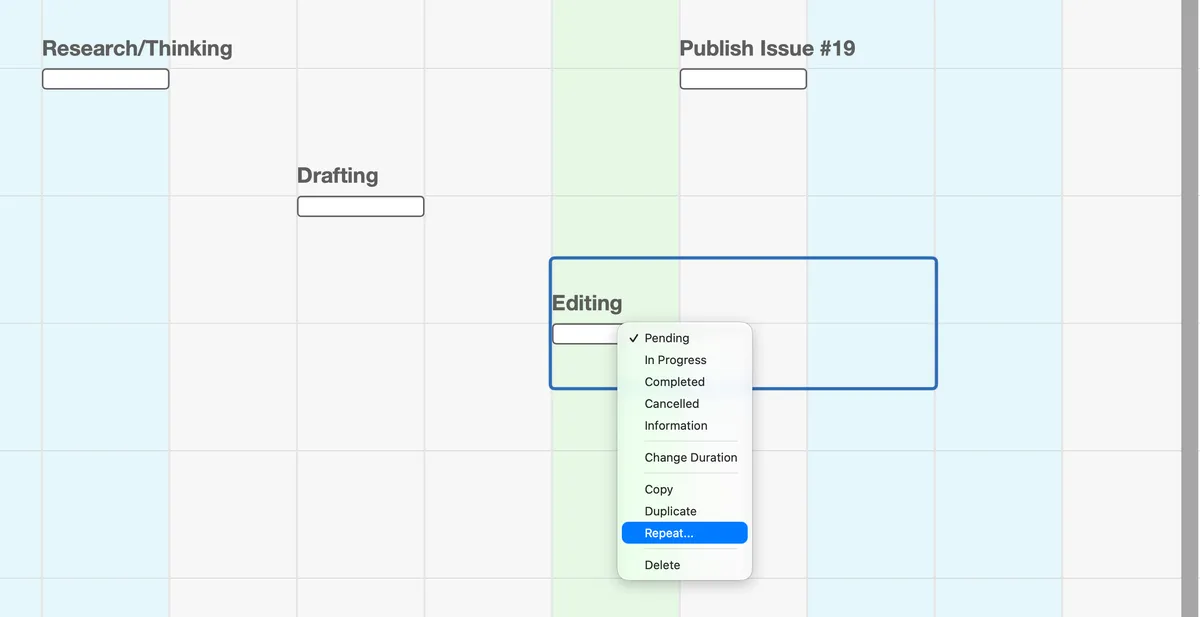
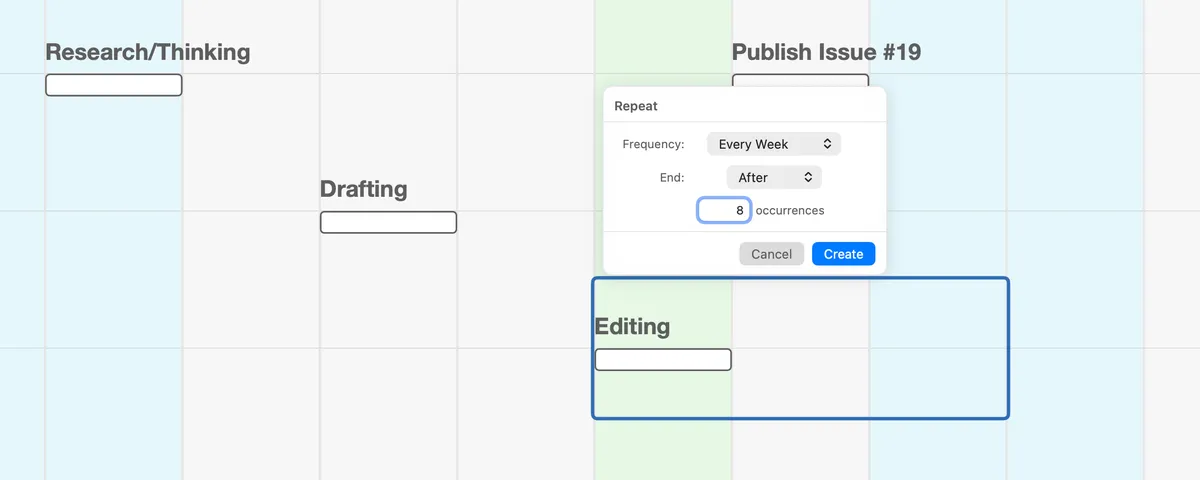
In the Repeat popover, choose:
- Frequency: every day, every week, every two weeks, every month, or every year.
- End: After a number of copies, or On Date.
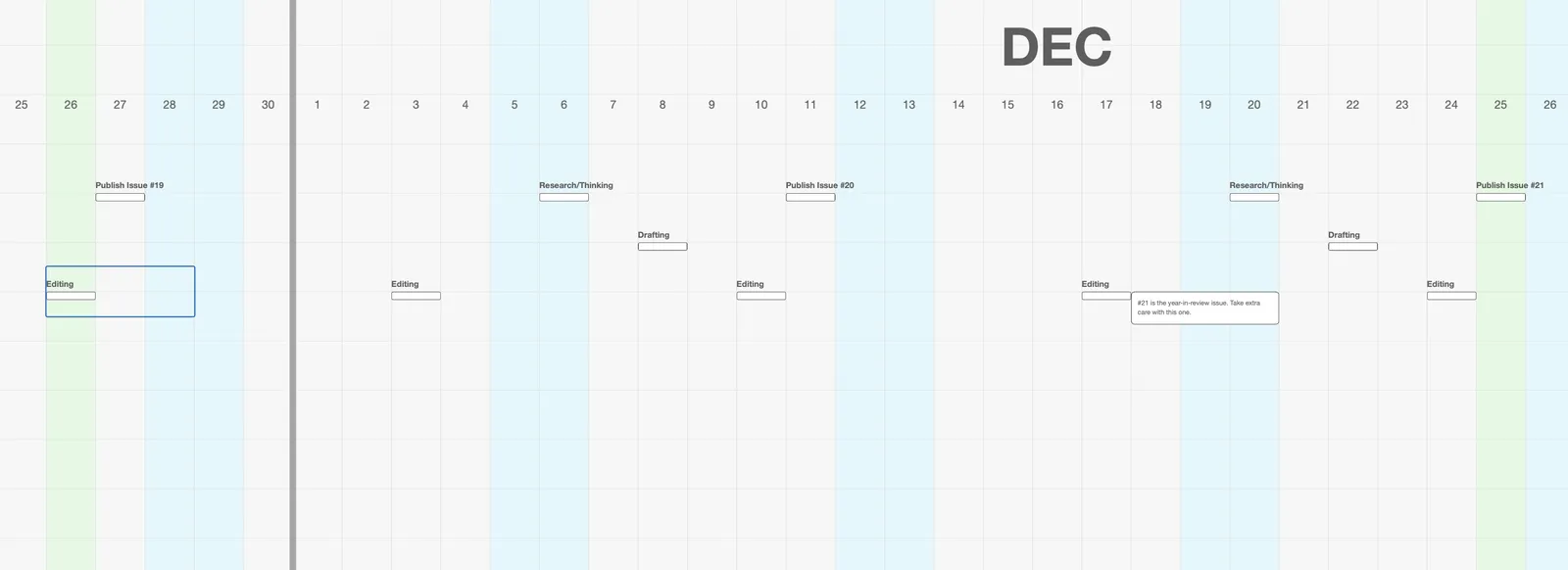
Create stays unavailable until you’ve chosen how the series ends. Click it, and the copies appear along the timeline, starting at the next occurrence after the original.
How the copies behave
Section titled “How the copies behave”- Each copy is its own item. It has the same title, comment, and length as the original, starts as Pending, and gets its own status from then on. Changing one doesn’t change the others.
- The original stays where it is. Repeat only adds copies after it.
- “After” counts copies, not the original. “After 5 occurrences” gives you the original plus five copies. You can make up to 52 at a time.
- Every day is only offered for a single plain Action. Action Clusters and Linked Actions already cover several days, so they repeat weekly or less often.
When the row runs out of room
Section titled “When the row runs out of room”Copies need clear space, the same as anything else on the canvas. If a copy would land on something already there, or run past the end of its Goal or Project, the series stops just before it, without a message. You get every copy that fits, in one unbroken row, so if you see fewer copies than you asked for, that’s why.
To get the rest, make room (move what’s in the way, or extend the container’s end date) and repeat the last copy.
Repeating several items together
Section titled “Repeating several items together”Select up to ten Actions, Action Clusters, or Linked Actions and choose Repeat… once. They repeat together, and all of them get the same number of copies. (The limit of ten keeps a single click from filling your map with copies.) Repeat… isn’t available when the selection includes Notes, Decorations, or containers.
Undoing a repeat
Section titled “Undoing a repeat”Didn’t come out the way you wanted? One Cmd+Z removes every copy the Repeat made.
Repeat, Duplicate, or an Action Cluster?
Section titled “Repeat, Duplicate, or an Action Cluster?”- Repeat… when the same piece of work comes back on a schedule.
- Duplicate (Cmd+D, right next to Repeat… in the menu) for a single copy you’ll place by hand.
- An Action Cluster when it’s the same thing every day for a stretch, and you’d rather see one item with a status per day. (See The Three Action Types.)
Try it
Section titled “Try it”Pick one thing you do every week that isn’t on your map yet: the weekly review, the long run, the call with your parents. Put the next one on the map, then Repeat it weekly through the end of the quarter. Watch how it looks across the next three months.
That’s the end of Part 2. You know everything Jupiter does. The rest is practice.
When you need to look something up, the Reference section has every keyboard shortcut, a tour of Settings, and answers to common questions.