Dimensions: The Areas of Your Life
A Dimension is a major area of your life: work, health, family, a creative pursuit, a big undertaking that deserves its own lane. Dimensions are the horizontal bands of the canvas, and everything else you’ll create lives inside one of them.
There’s no right set. A four-Dimension life and a six-Dimension life are both common; what matters is that each one names something that genuinely matters to you. If you cleared the sample data, you’re looking at four empty Dimensions waiting for real names — let’s fix that.
The one rule to learn first
Section titled “The one rule to learn first”Before touching anything, learn the rule that drives all of Jupiter:
Right-click is the primary verb. And where you right-click decides what you get:
- Right-click a container’s header (its title strip) to manage it: rename, recolor, duplicate, delete.
- Right-click a container’s interior (the open space inside it) to create things in it.
- Right-click open canvas (outside every Dimension) to create new Dimensions.
Header to manage, interior to create. That one distinction is most of Jupiter’s interface, and it works the same at every level — Dimensions now, Goals and Projects on the next page.
Renaming a Dimension
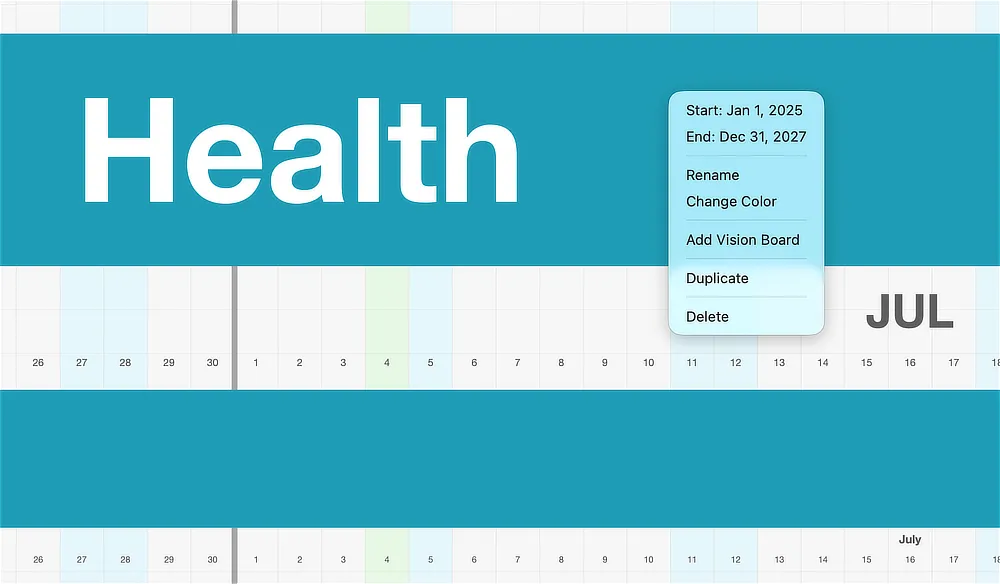
Section titled “Renaming a Dimension”Right-click the Dimension’s header and choose Rename. Type the real name of a real area of your life — not a category you think you should have, but one you actually think in. “Health” if that’s your word; “Training” if that’s your word.
While the menu is open, notice what else lives here: the Dimension’s start and end dates at the top, Change Color, Show Vision Board (a canvas of images and notes attached to this Dimension — covered later in the guide), Duplicate, and Delete.
Changing a Dimension’s color
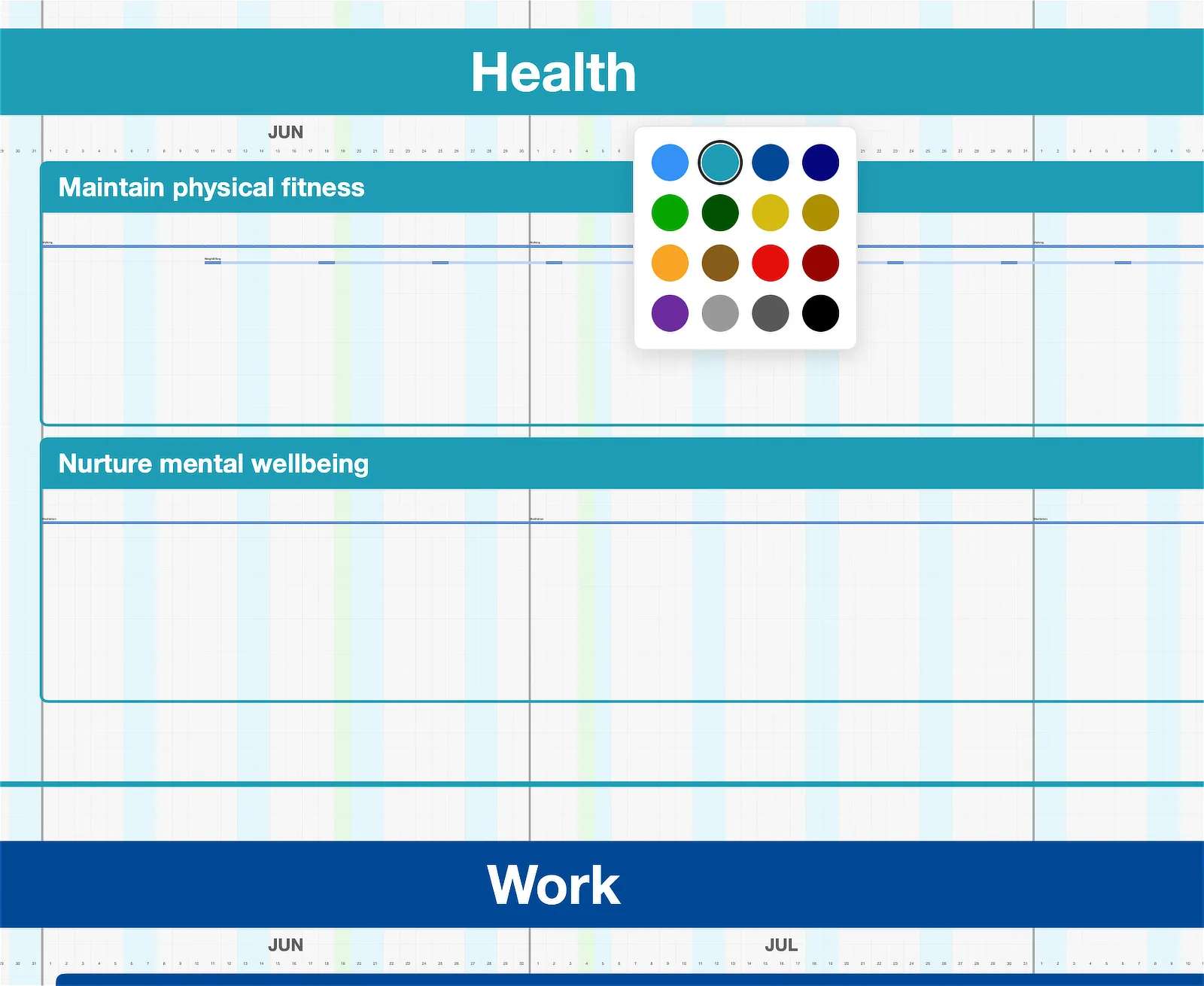
Section titled “Changing a Dimension’s color”From the same header menu, choose Change Color and pick from the palette. Each Dimension’s color carries through everything inside it — its Goals, Projects, and Actions all wear the family color — which is what makes the zoomed-out canvas readable at a glance: you’re not reading labels, you’re reading bands of color.
The colors are designed to adapt across Jupiter’s themes, so a palette choice that looks right in the light theme will still look right in the dark one.
Creating a new Dimension
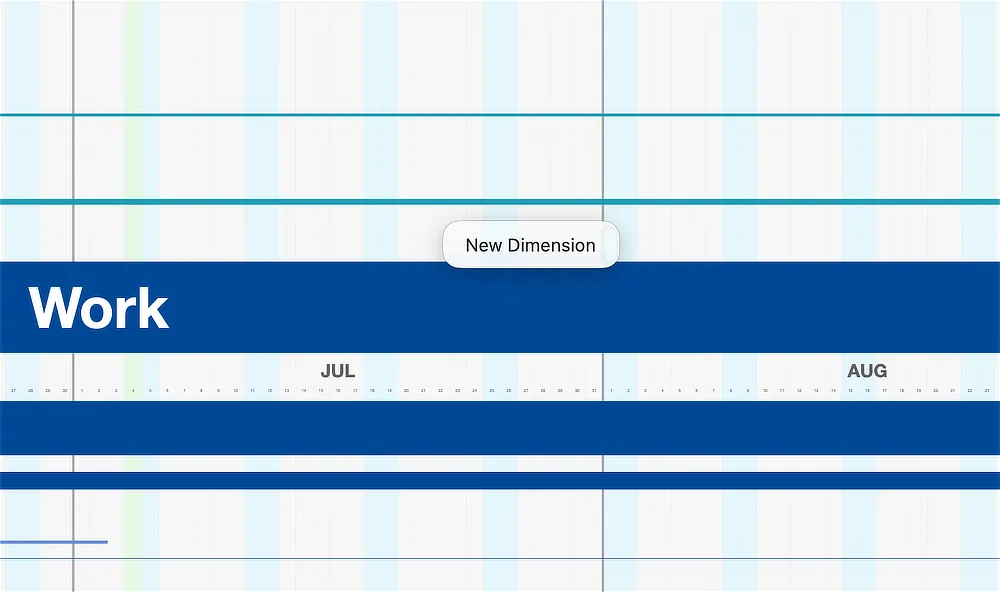
Section titled “Creating a new Dimension”Right-click any open canvas — the space outside every Dimension — and choose New Dimension. (It’s also in the menu bar, under Item → New Dimension.)
Don’t overthink the set. Dimensions are cheap to create, rename, and delete, so start with the obvious ones and let the structure earn its shape over the first few weeks. A Dimension that stays empty is telling you something; so is one that’s overflowing.
Arranging Dimensions
Section titled “Arranging Dimensions”Dimensions can be reordered and reshaped directly on the canvas. First select one by clicking its header. Then:
- Reorder: drag the selected Dimension up or down to change where it sits in the stack.
- Resize: move the cursor to the selected Dimension’s left, right, or bottom edge until it becomes a double arrow, then drag — the left edge changes the start date, the right edge the end date, and the bottom edge the Dimension’s height on the canvas.
Put the Dimensions you look at most near the top; give the busy ones more height. The canvas should reflect how you actually attend to your life.
Removing a Dimension
Section titled “Removing a Dimension”Delete in the header menu removes a Dimension. If it contains anything, Jupiter asks for confirmation first — a deleted Dimension takes everything inside it along, so read that dialog before agreeing. If you delete one by mistake, Cmd+Z brings it back.
Name yours now
Section titled “Name yours now”Take two minutes before the next page: rename the starter Dimensions to the real areas of your life, give each a color, and drag them into an order that matches how you think. When the bands on your canvas have your words on them, the next page gets to do the fun part — putting a real goal inside one.