Milestones and Decorations
Most of your map is work: bars with spans and statuses. Decorations are something else. They’re markers that sit on top of the plan, pointing at a day or flagging what matters. There are four kinds: Milestones, Priority markers, Stars, and Warnings.
Adding a decoration
Section titled “Adding a decoration”Right-click where the decoration belongs, inside a Dimension, Goal, or Project, and choose Decoration. Pick the kind you want from the submenu, and it appears where you clicked.
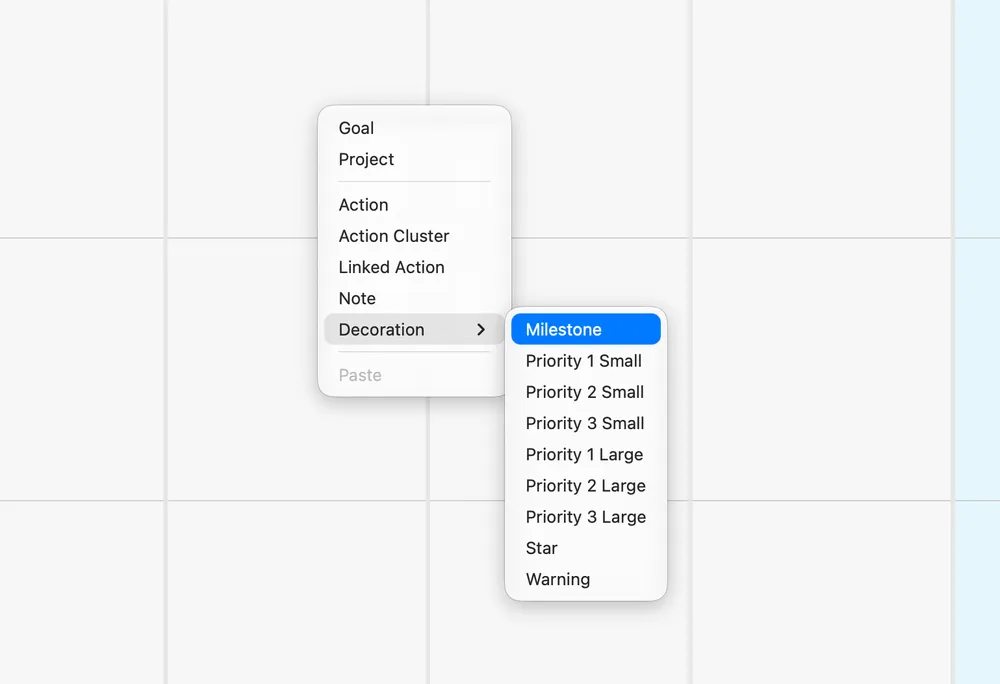
You can also select a container by clicking its header, then use the star button at the right end of the toolbar, or Item ▸ New Decoration in the menu bar. Both open the same list, and the decoration goes into that container, in or near the middle of the window, ready to drag into place.

Milestones: the dates that matter
Section titled “Milestones: the dates that matter”A Milestone marks a single day with a pin and a short label. Race day. Launch day. The filing deadline. Mom’s birthday. Where an Action says do this, a Milestone says this is when. It takes the color of the Dimension it sits in.
To label it, double-click the label area, type, and press Enter. You can also right-click the Milestone and choose Rename.
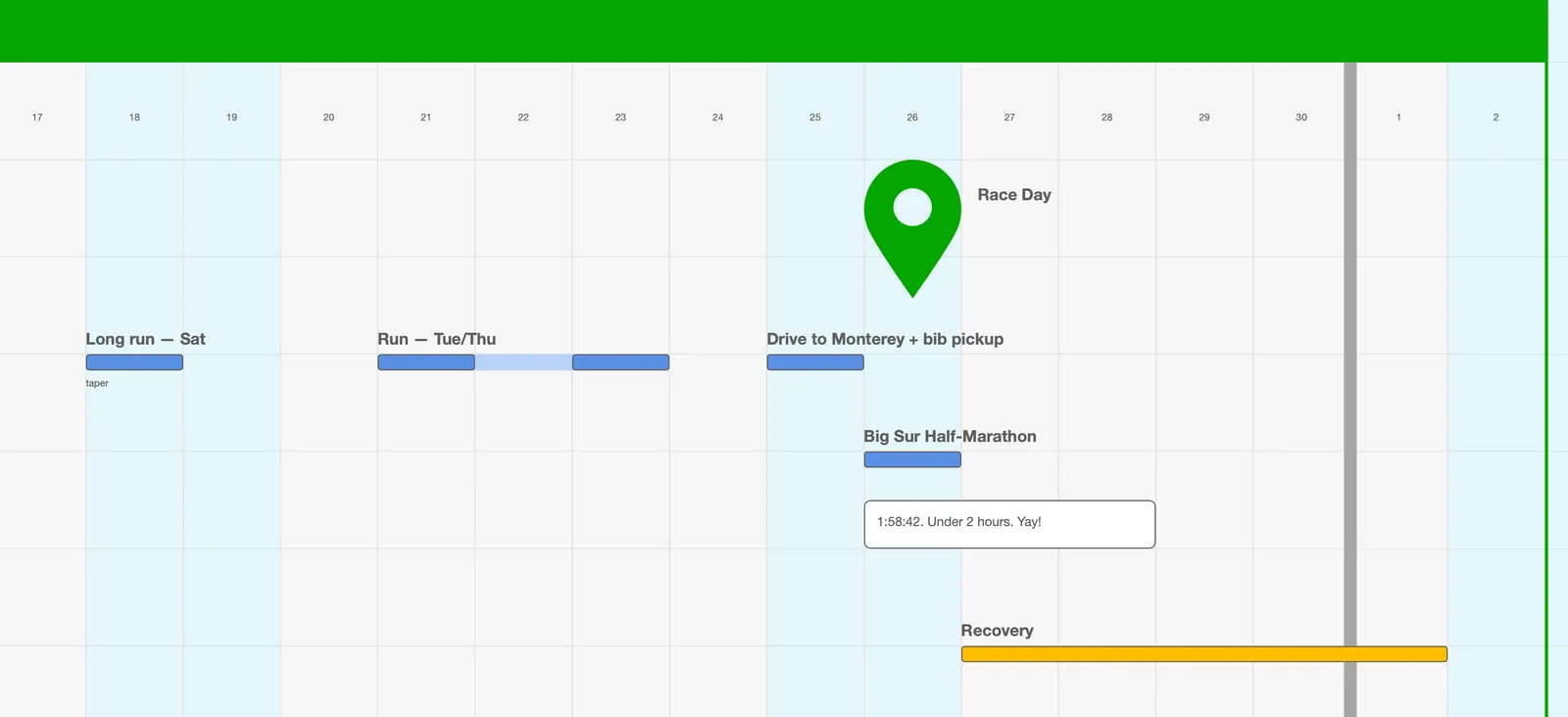
Milestones earn their keep at the far end of a Goal. Put the finish line on the map, and the work in front of it has something to line up against: you can see at a glance whether there’s enough of it, early enough.
Priority markers
Section titled “Priority markers”Priority markers come in three levels, 1, 2, and 3, each in a small and a large size.
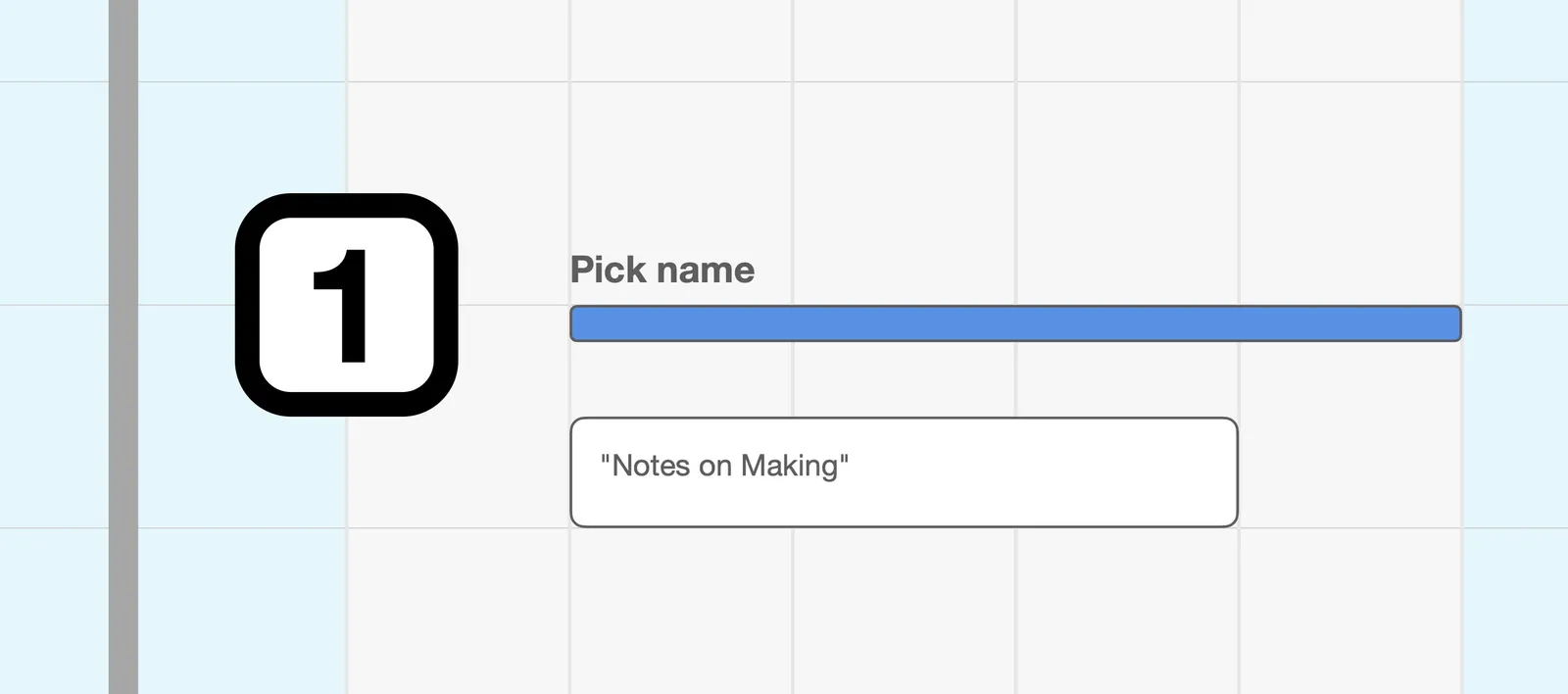
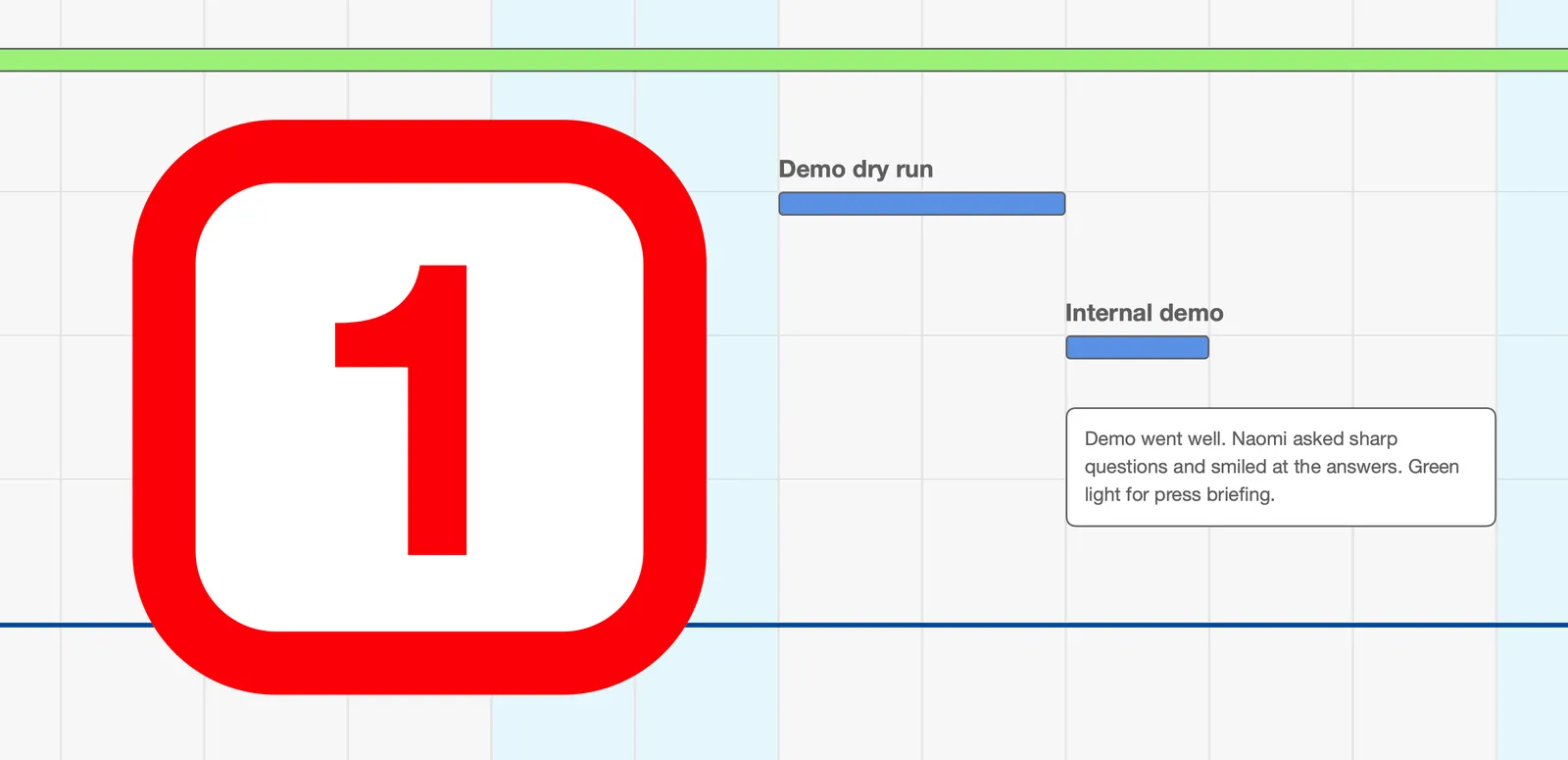
How you use them is up to you. Some people stick to one size. Others use the large ones for what’s really, really important and the small ones for what’s just important.
Star and Warning
Section titled “Star and Warning”A Star marks something to celebrate or come back to. Like a Milestone, it takes its Dimension’s color.
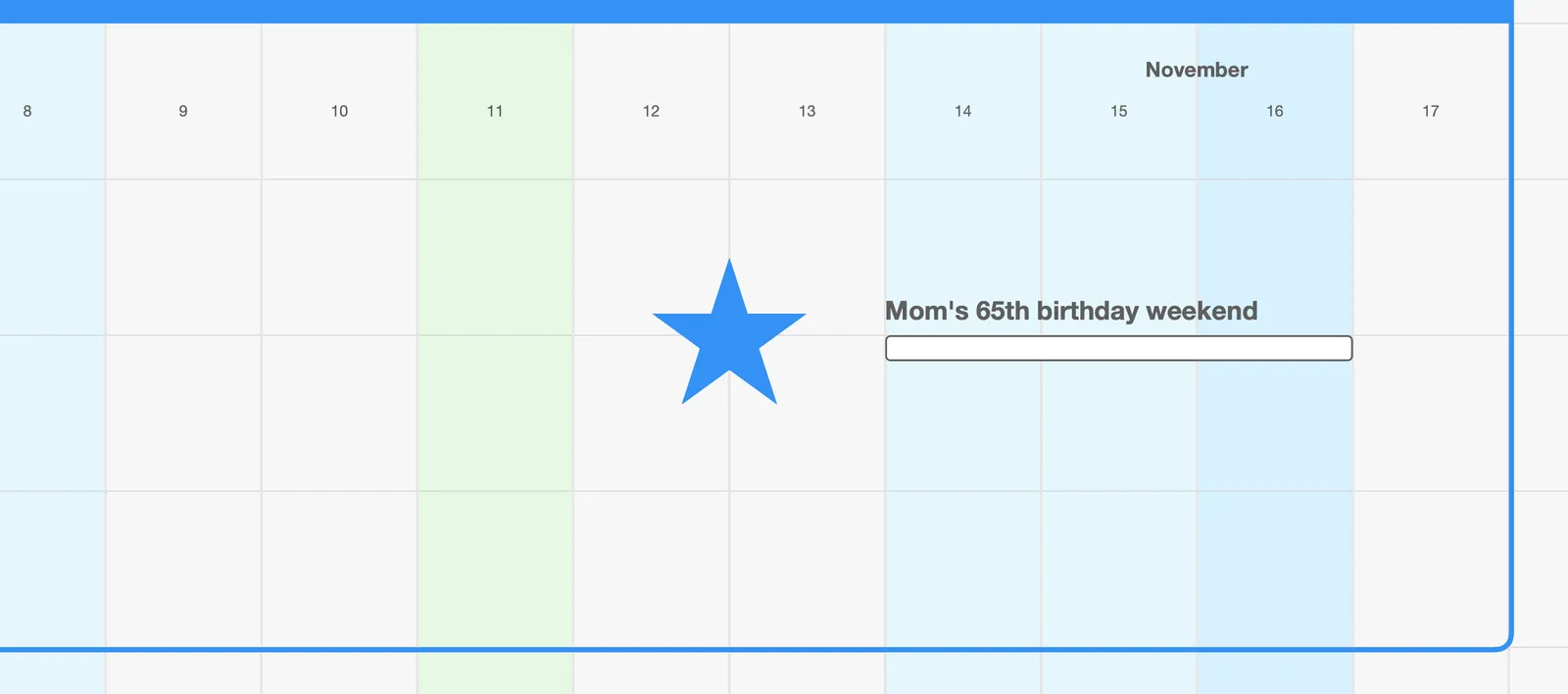
A Warning marks a risk: a crowded week, a dependency you’re not sure of, a date you suspect will slip.
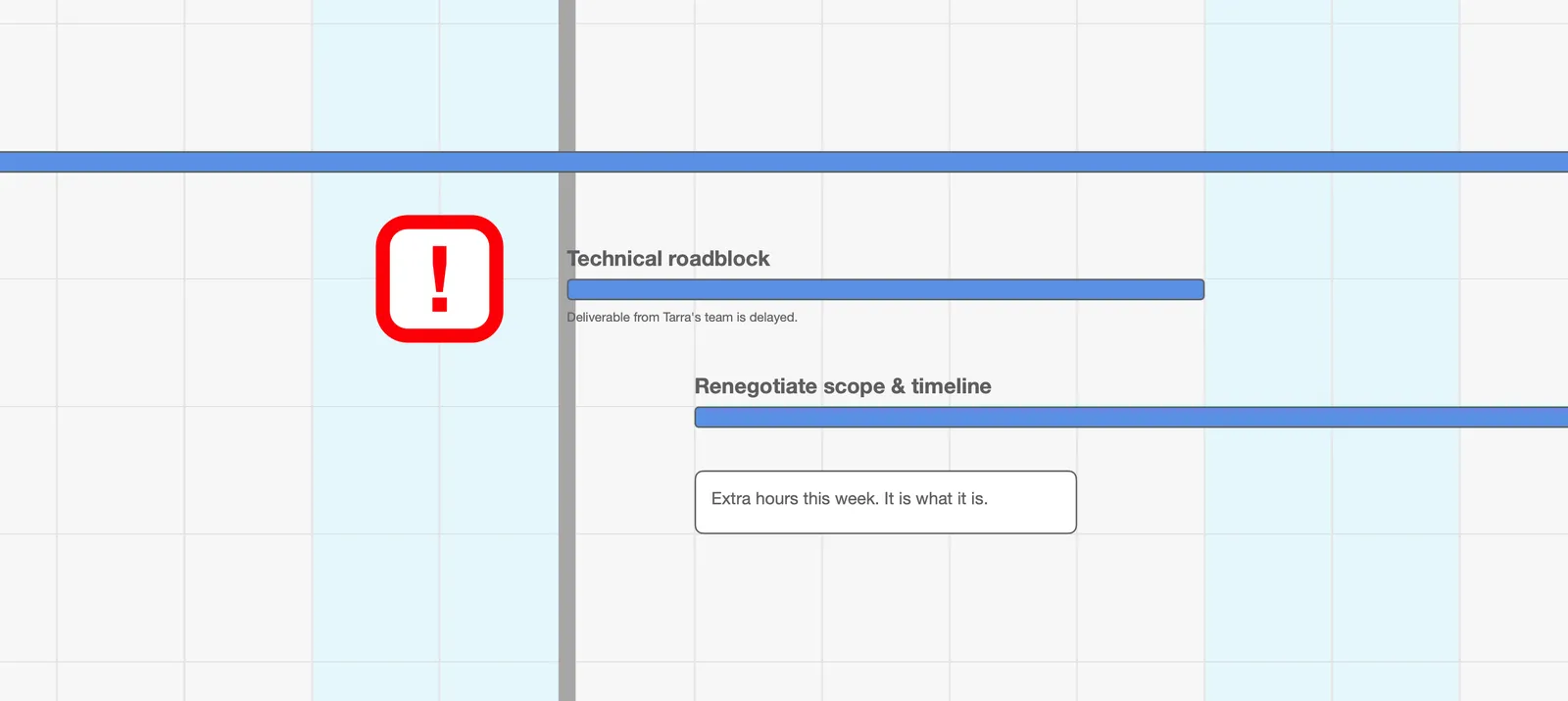
Moving, copying, and removing
Section titled “Moving, copying, and removing”Click a decoration to select it, then drag to move it. Decorations can overlap other items and containers, so put them exactly where they make sense.
Right-click a decoration to Copy, Duplicate, or Delete it (Milestones also offer Rename here). A decoration’s kind is fixed once it’s placed, so to turn a Star into a Warning, add the new one and delete the old.
Try it
Section titled “Try it”Pick the one date this year you most can’t afford to miss. Put a Milestone on it and label it. Then look at the work in front of it: is there enough, and does it start early enough? If not, you’ve just found the most useful thing to plan next.
Next: Notes →