Vision Boards
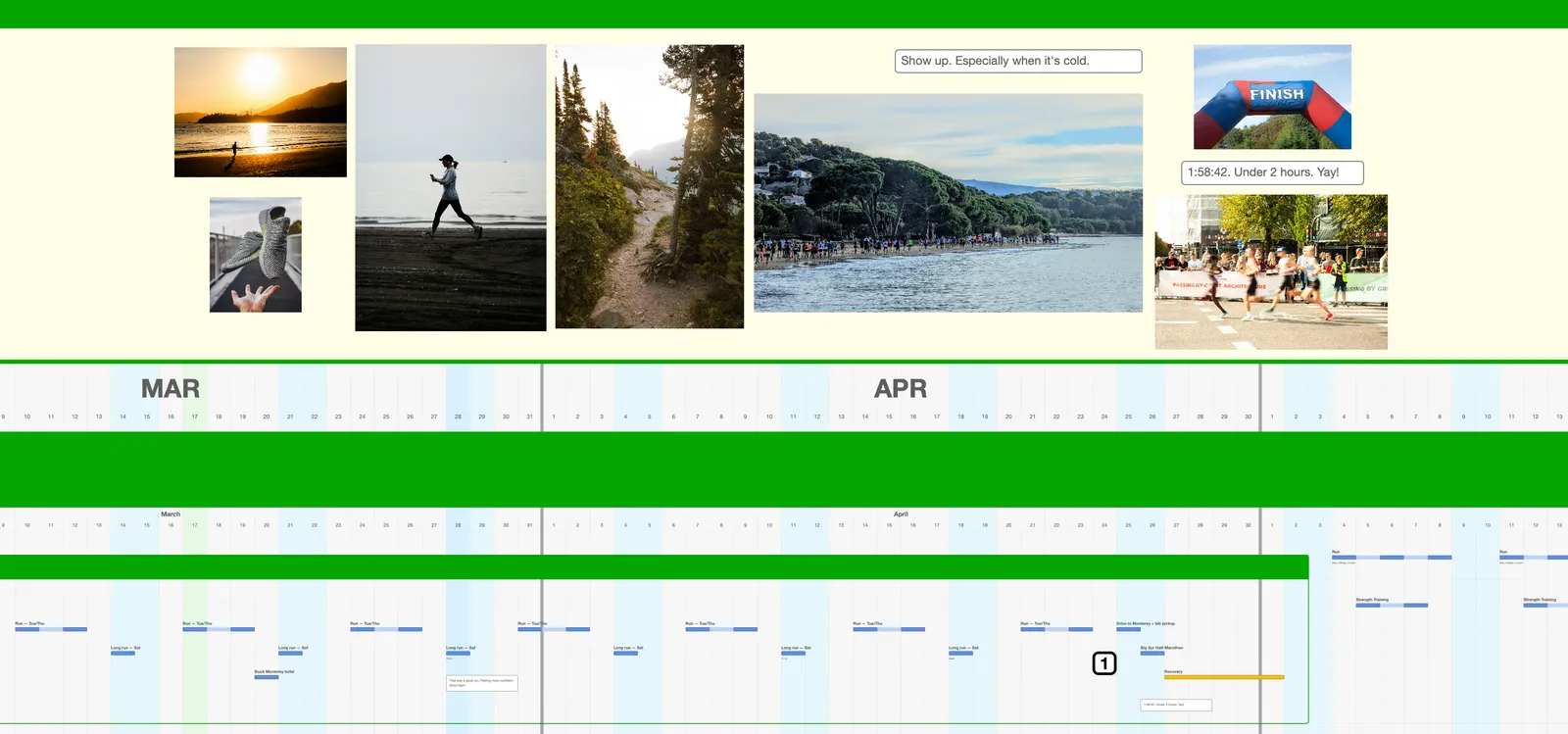
A plan says what you’ll do. A Vision Board says why. Every Dimension has one: a free-form space for images and words about where that part of your life is headed. Reference photos for the trip, the house you’re saving for, the quote that keeps you going, a mood board for the project.
Unlike the rest of the canvas, a Vision Board has no dates and no grid. Put things wherever they look right.
Showing and hiding
Section titled “Showing and hiding”Vision Boards start hidden, so they don’t take up space until you want them. To open one, right-click its Dimension’s header and choose Show Vision Board. If the board is still empty, the menu says Add Vision Board instead. The board opens between the header and your plan, and everything below it shifts down to make room.
To close it, choose Hide Vision Board from the same menu. Nothing on the board is lost.
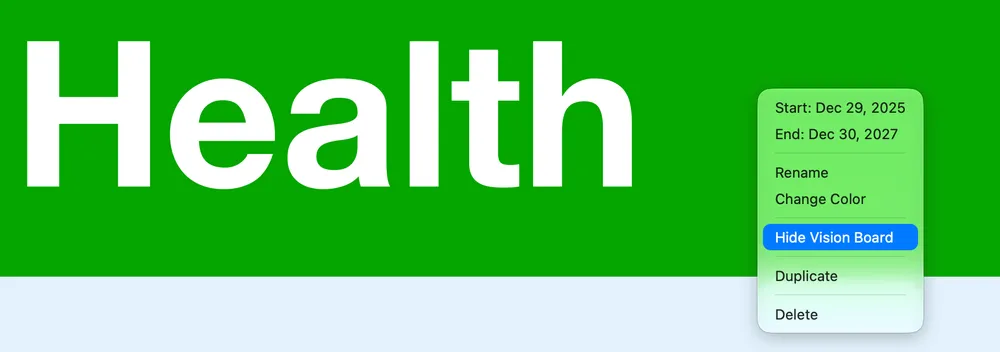
To open or close every board at once, use Canvas ▸ Show All Vision Boards or Canvas ▸ Hide All Vision Boards.
Adding images
Section titled “Adding images”There are three ways to put an image on a board:
- Drag image files from the Finder onto the board. You can drop several at once.
- Copy an image (or take a screenshot to the clipboard), then right-click the board and choose Paste. It lands where you clicked.
- Press Cmd+V. This works when the board is in the middle of the window, and the image lands in the middle of the view.
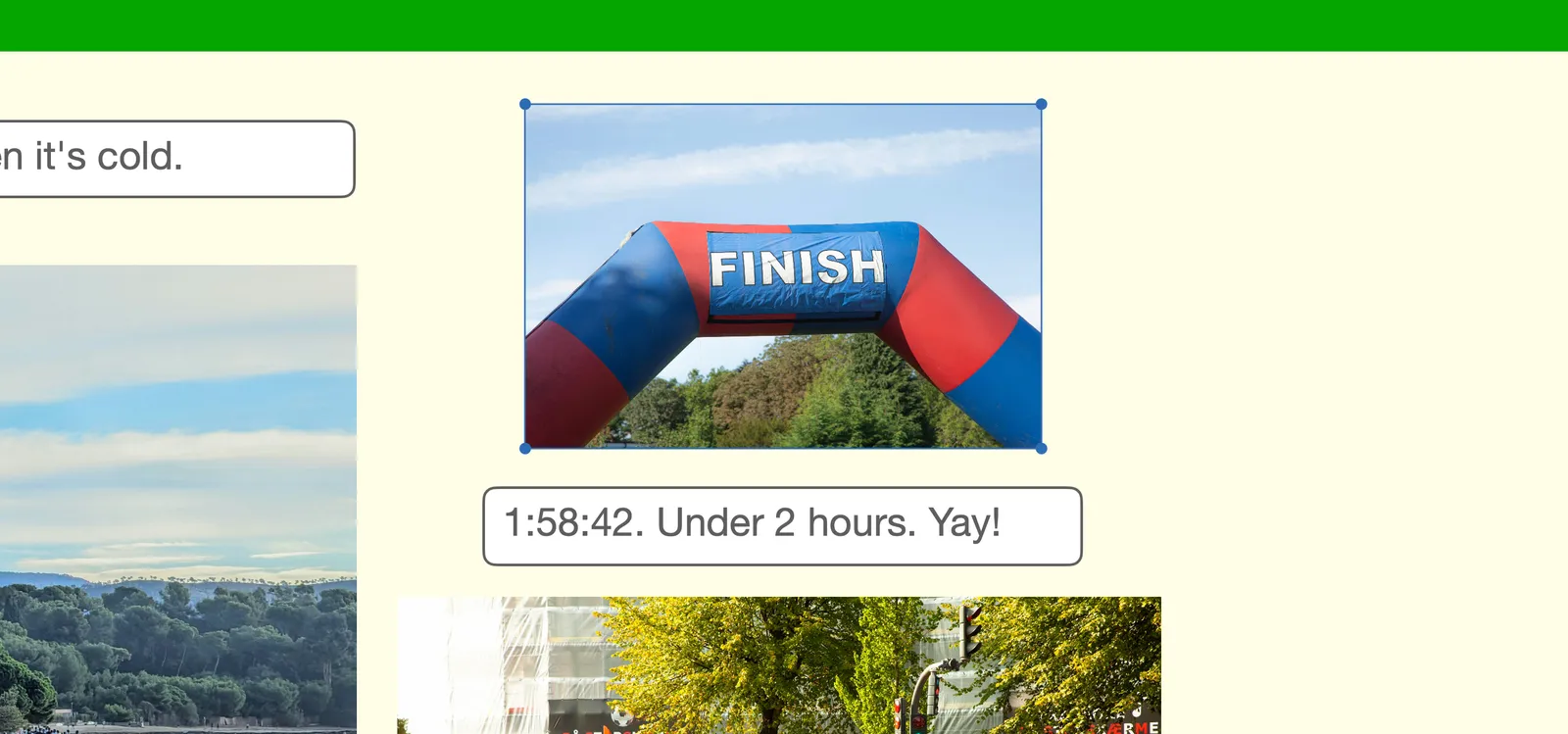
A new image arrives at a sensible size: no more than half the board, and never larger than the original.
Moving and resizing. Click an image to select it, then drag to move it anywhere on the board. Drag a corner handle to resize; the proportions stay locked. Newer items sit on top of older ones.
Adding words
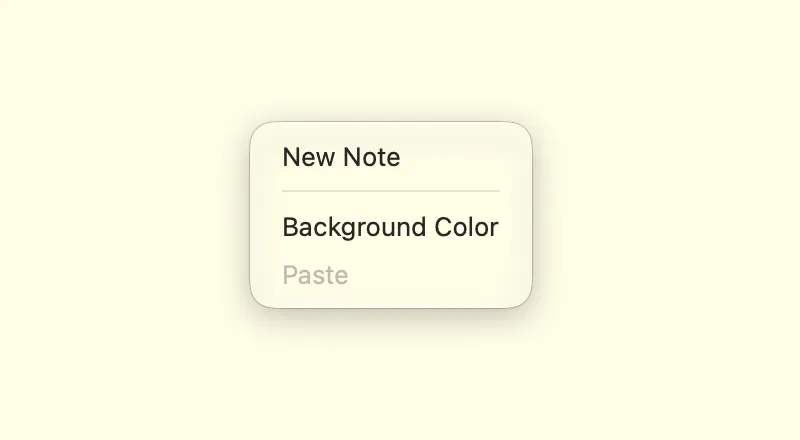
Section titled “Adding words”Right-click the board’s background and choose New Note. It appears where you clicked, ready for typing. Notes on a board work like Notes on the canvas: double-click to edit, drag to move, and drag an edge to resize. The text is bigger, made to be read at a glance.
Background color
Section titled “Background color”Right-click the board’s background and choose Background Color, then pick a color from the palette. It’s a quick way to give each board its own mood.
Removing things
Section titled “Removing things”Right-click an image and choose Delete Image, or a Note and choose Delete Note. Like most changes on the canvas, it can be undone with Cmd+Z.
- For a Goal: a photo of the finish line, the venue, the place you’re moving to.
- For a stretch of life: a mood board of how you want this year to feel.
- For when it gets hard: one line, large, in the middle of the board.
Keep it small. A board with five things you care about does more than one with fifty.
Try it
Section titled “Try it”Open the Vision Board on the Dimension you’re most invested in right now. Add one image and one line about why it matters. Then hide it, and open it again the next time that part of your plan feels like a grind.
Next: Special Days →