First Launch
The first time you open Jupiter, it doesn’t hand you a blank screen. It opens onto a working plan: a full year of a sample life, already mapped. This page walks you through what you’re looking at and how to make the canvas yours.
The welcome screen
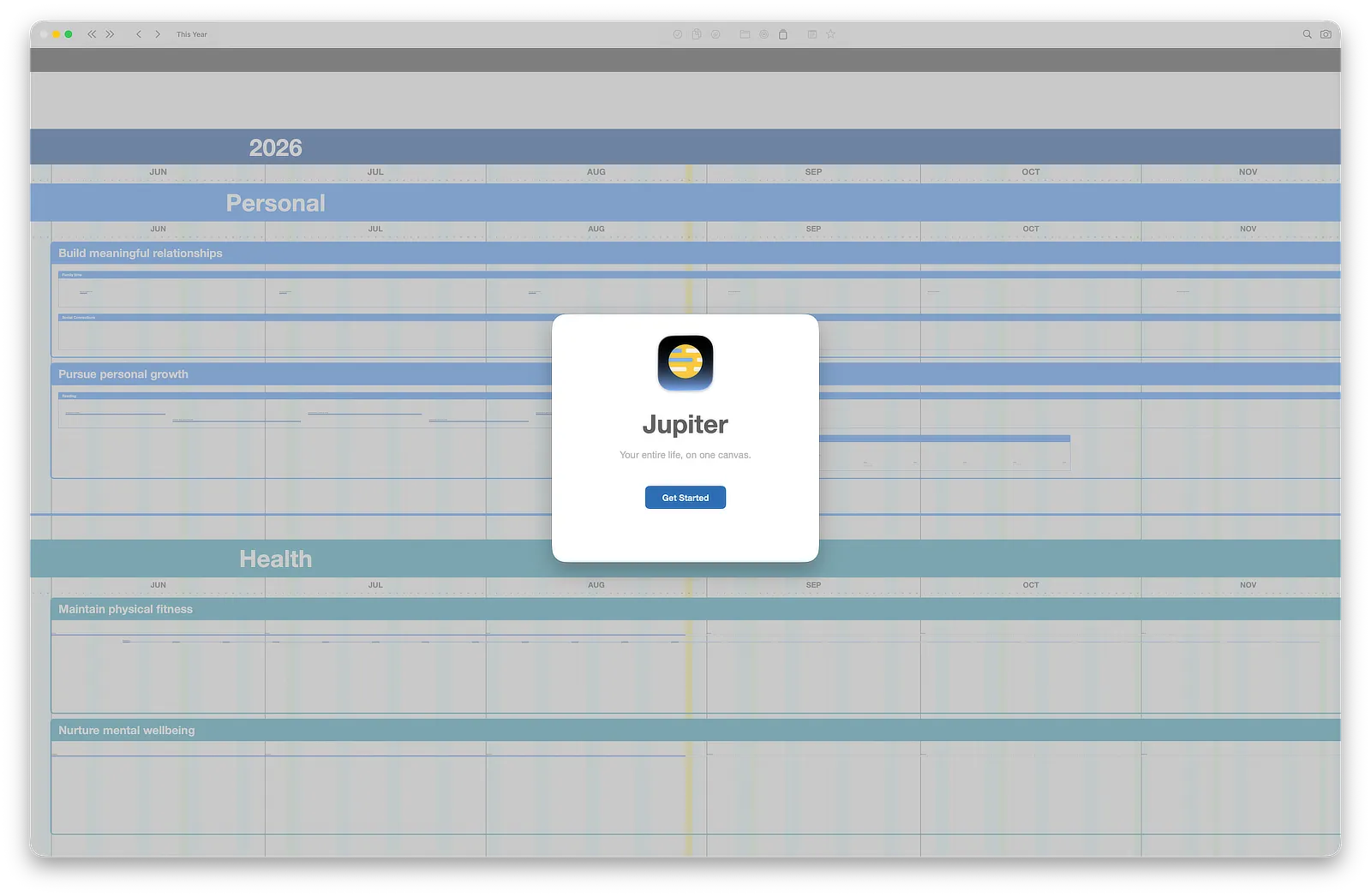
Section titled “The welcome screen”Jupiter opens with a short welcome. Click Get Started and it slides away, revealing the canvas centered on today.
A few tips will appear, one at a time, pointing out the basics: click Got it to step through them. They only show once, and everything they cover is also in this guide.
The free trial
Section titled “The free trial”On a new install, after the welcome, Jupiter offers you a 30-day free trial. Click Start 30-Day Free Trial and everything in Jupiter is yours for 30 days. Starting the trial is free, and nothing is charged when it ends. If you already know you’ll keep Jupiter, Unlock Jupiter is a one-time purchase with no subscription.
If you choose Not Now, the sample plan stays view-only until you start the trial: you can look around, but not edit. A banner across the top of the canvas lets you start it whenever you’re ready, and so does Settings ▸ Purchase. See Settings.
The sample plan
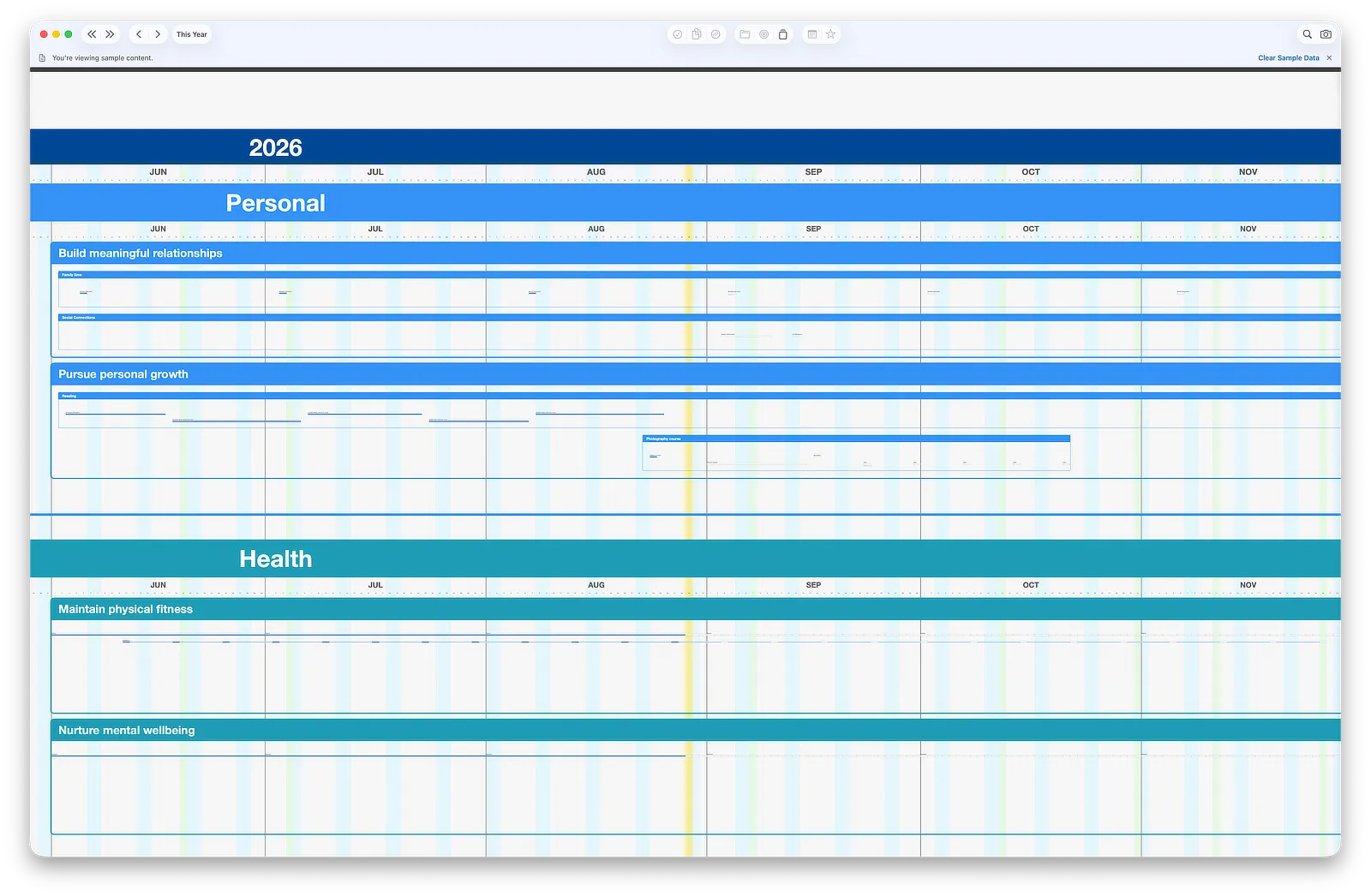
Section titled “The sample plan”What you’re now looking at is a complete example JAM (that’s the Jupiter term for your map, short for Jupiter Actualization Map): four Dimensions — Personal, Health, Work, and Jupiter — filled with a year of goals, projects, daily actions, habits, and notes.
The sample exists so you can explore a real, working plan before building your own. Scroll around in it. Zoom in and out. Double-click things. Drag something and undo it with Cmd+Z. Nothing you do here matters, which makes it the perfect place to get a feel for the canvas before your real plan is on it.
One Dimension is worth a special look: the Jupiter Dimension contains a handful of getting-started Actions — a small, ready-made to-do list for learning the app itself. Working through those Actions inside the app covers similar ground to this guide, from inside the canvas.
The sample banner
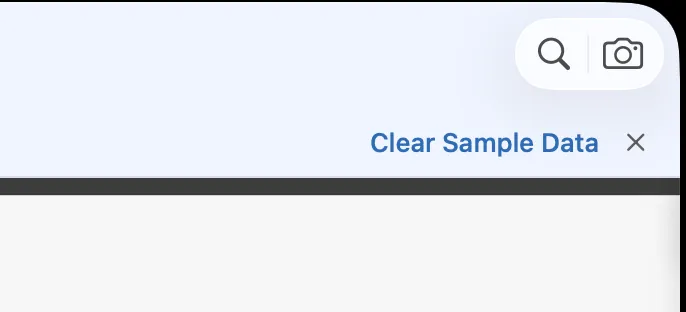
Section titled “The sample banner”Below the toolbar you’ll see a banner noting that you’re viewing sample content. It offers two choices:
Clear Sample Data replaces the sample plan with four empty Dimensions, ready for your real life. This is the button to press when you’re done exploring and want to start your own JAM.
✕ dismisses the banner and keeps the sample plan, if you’d rather keep exploring for now.
Clearing the sample is safe: you lose nothing of your own (there’s nothing of yours on the canvas yet), and the four empty Dimensions it leaves behind are fully changeable — you’ll rename them, recolor them, add and remove them in the next pages. If you’re mid-exploration and not ready, keep the sample as long as you like; the banner will be there when you’re ready to clear it.
Take five minutes
Section titled “Take five minutes”Before moving on, spend a few minutes in the sample plan with one question in mind: whose life is this, and what are they trying to do this year? You’ll find the answer is readable directly off the canvas — the goals, the training blocks, the launches, the birthdays. That readability is what your own JAM will have within the next few pages.
Next: The Canvas →