The Three Action Types
Jupiter has three Action types. They’re less three rules than three shapes: all of them are work on the timeline, and what differs is how the days inside are drawn and tracked.
- One span, one status → Action
- The same thing on consecutive days, each day tracked → Action Cluster
- A chain of connected pieces, each its own unit → Linked Action
None of these is the “correct” choice for a given kind of work. Almost anything can be built more than one way, and the right way is the one that reads best on your map.
Action: one piece of work
Section titled “Action: one piece of work”The plain Action is what you met in the getting-started guide: one block of work with a span and a single status. “Write the report.” “Book the venue.” “Sign up for the race.” Most of any plan is plain Actions, and when in doubt, start here.
Making one, start to finish
Section titled “Making one, start to finish”Everything an Action needs is on the right-click menu.
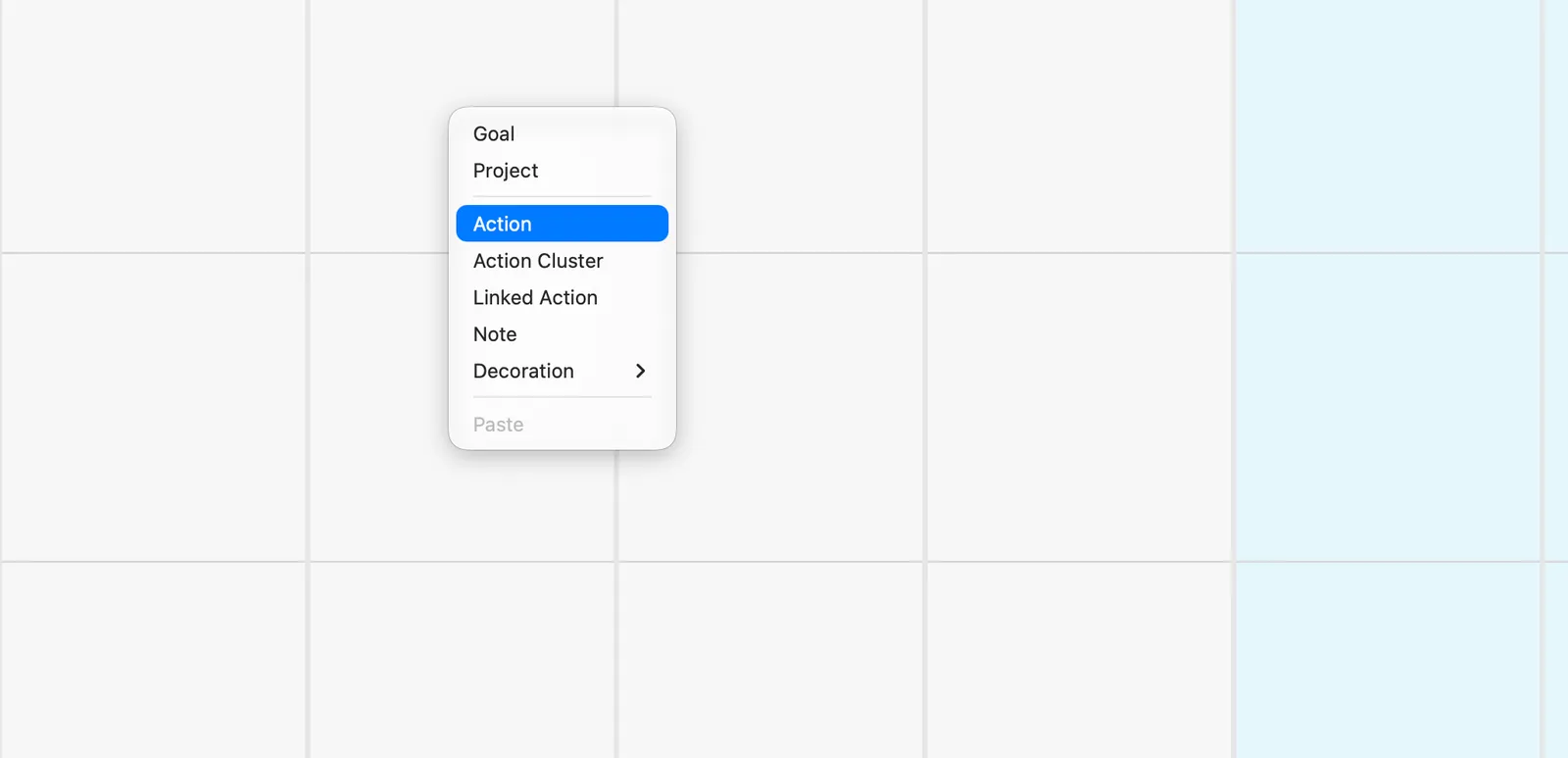
Create it. Right-click inside the Dimension, Goal, or Project where the work belongs and choose Action.
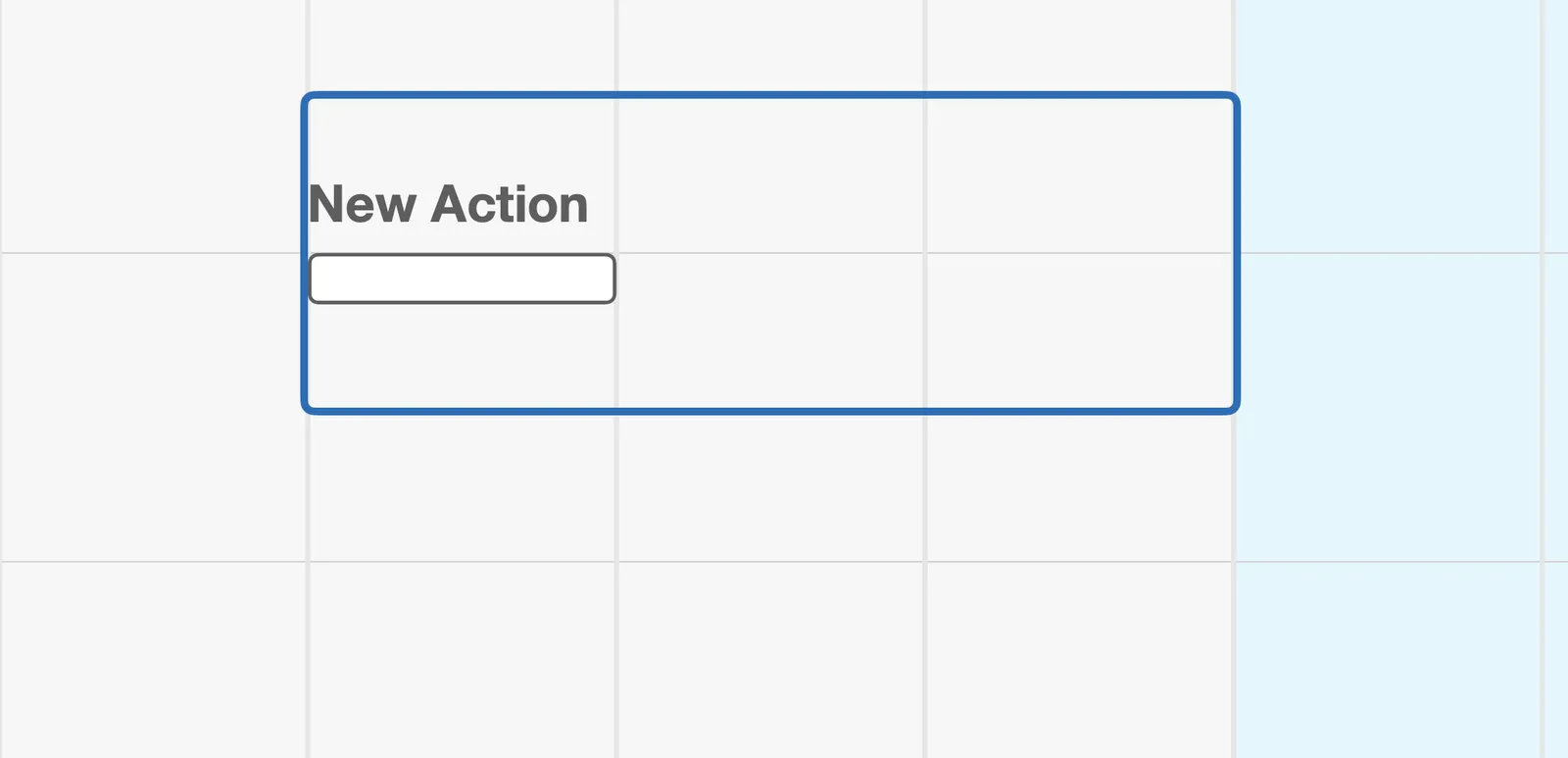
A one-day Action named “New Action” appears on the day you clicked, set to Pending.
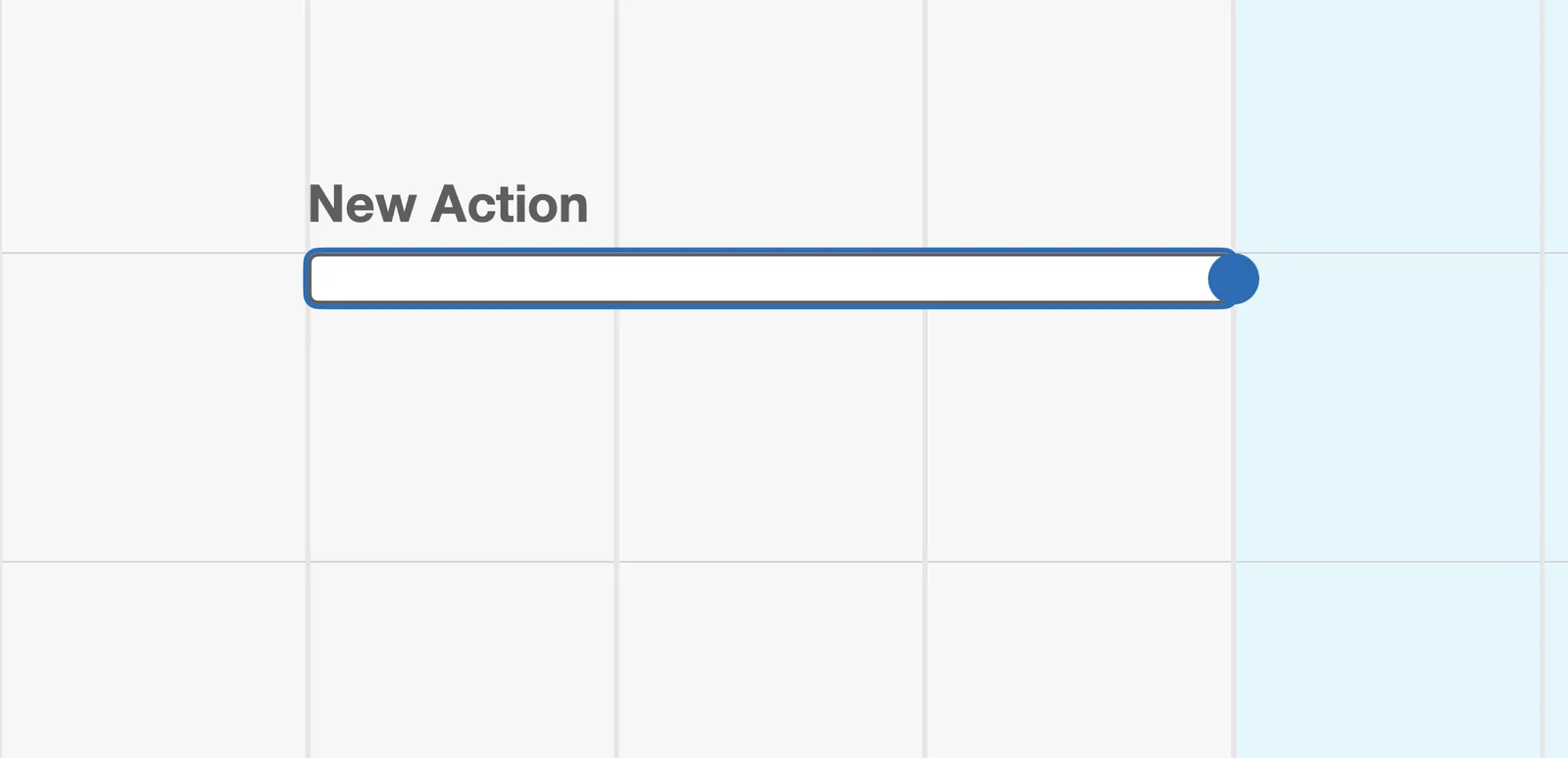
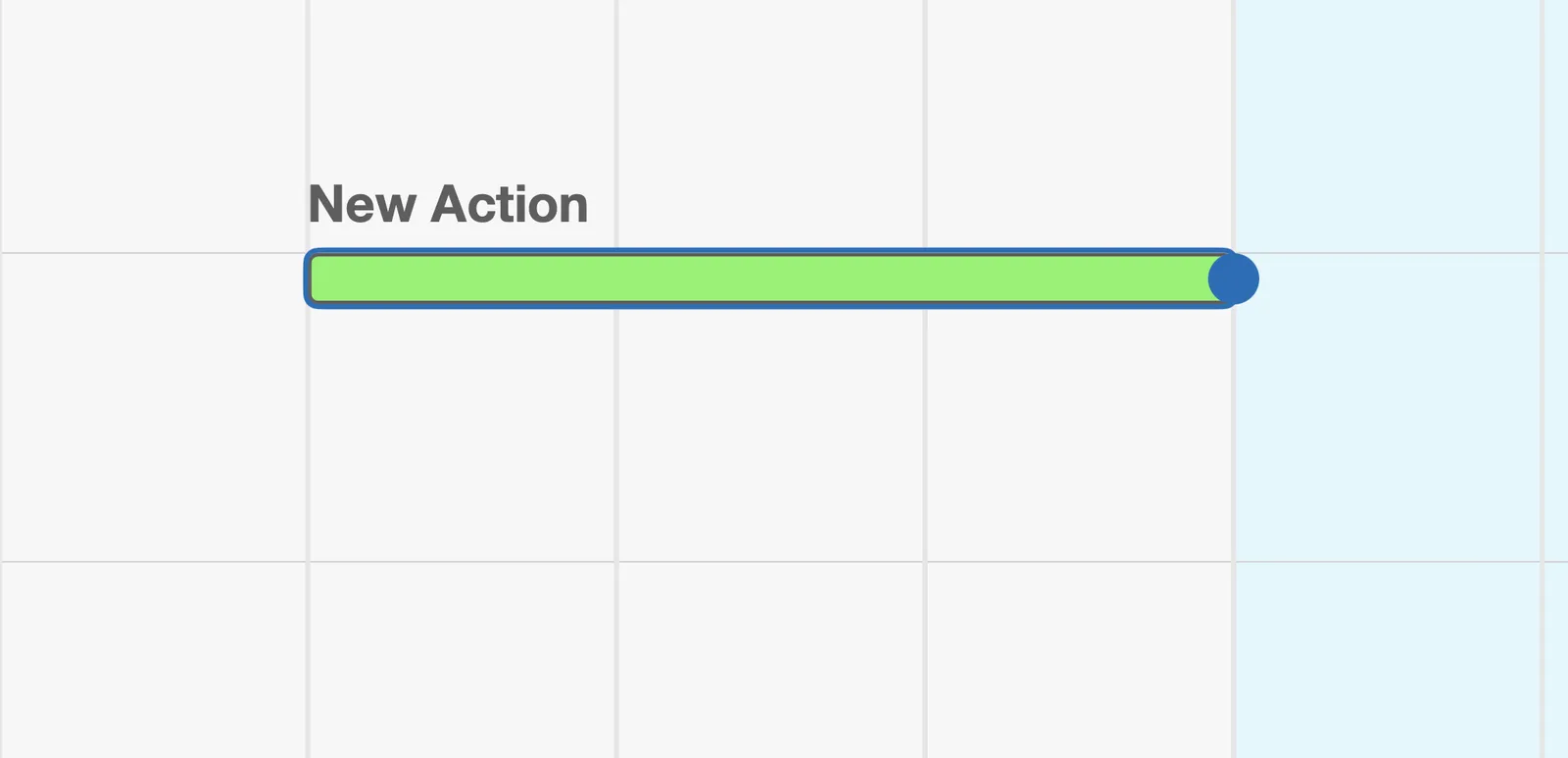
Set its length. Right-click the Action and choose Change Duration. A circular handle appears on the right end of the bar; drag it to the day the work should finish.
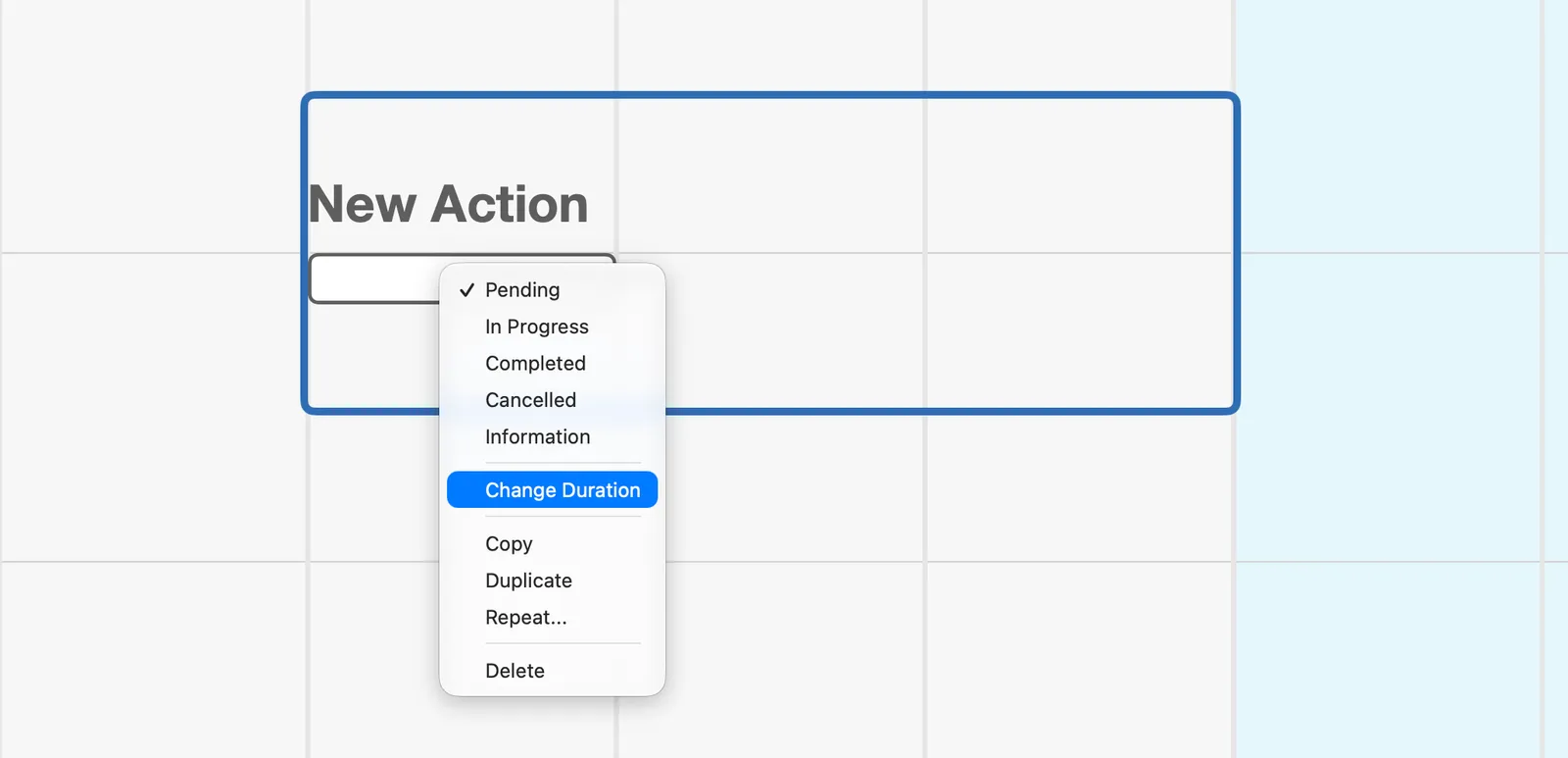
Set its status. Right-click again and pick a status. For an Action that spans several days, set it to In Progress on the day you start. The bar then shows In Progress across the days ahead, a reminder that the work still needs you.
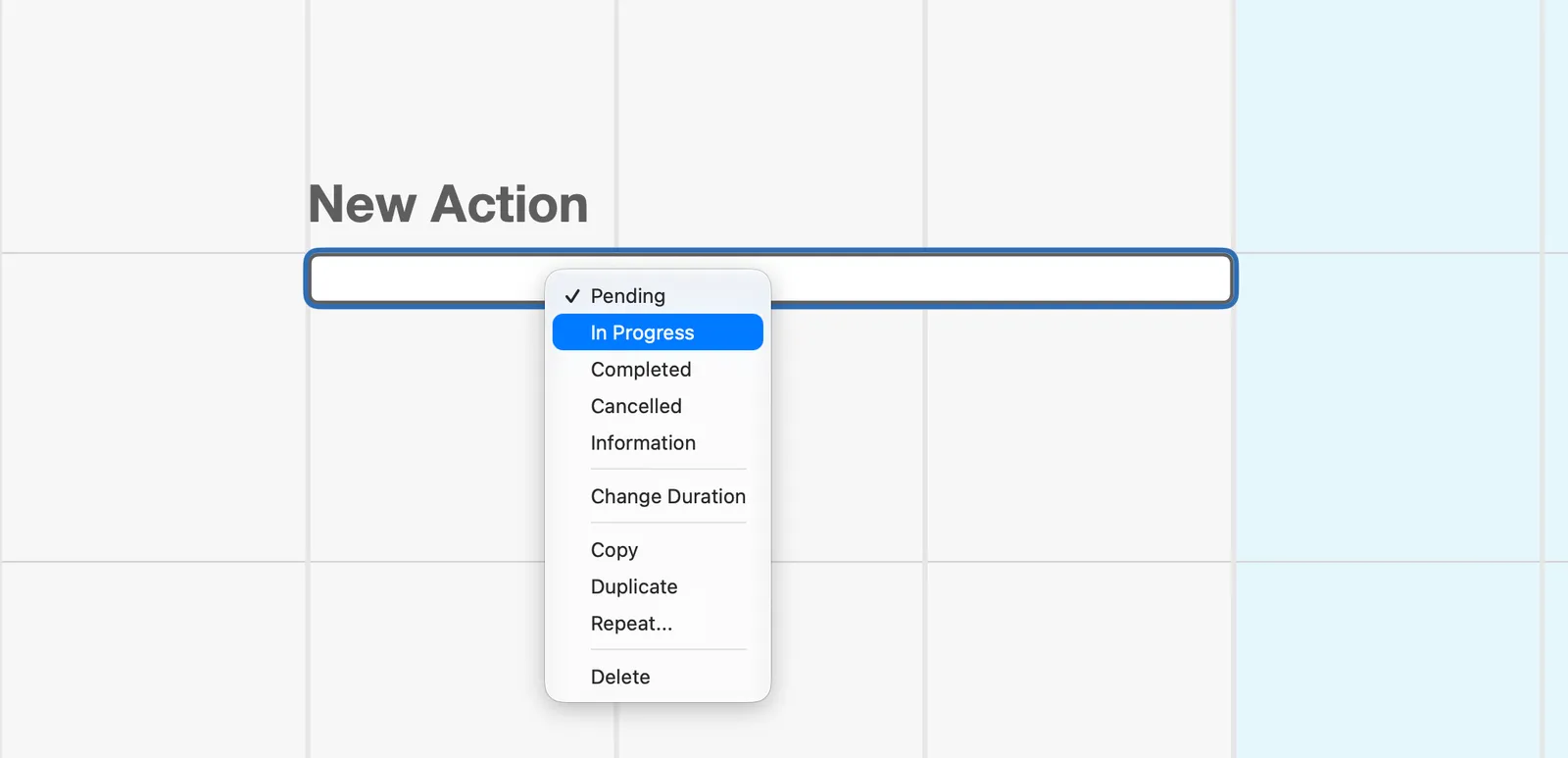
Double-clicking the bar works too: it opens a shorter popover with just the statuses and Change Duration.
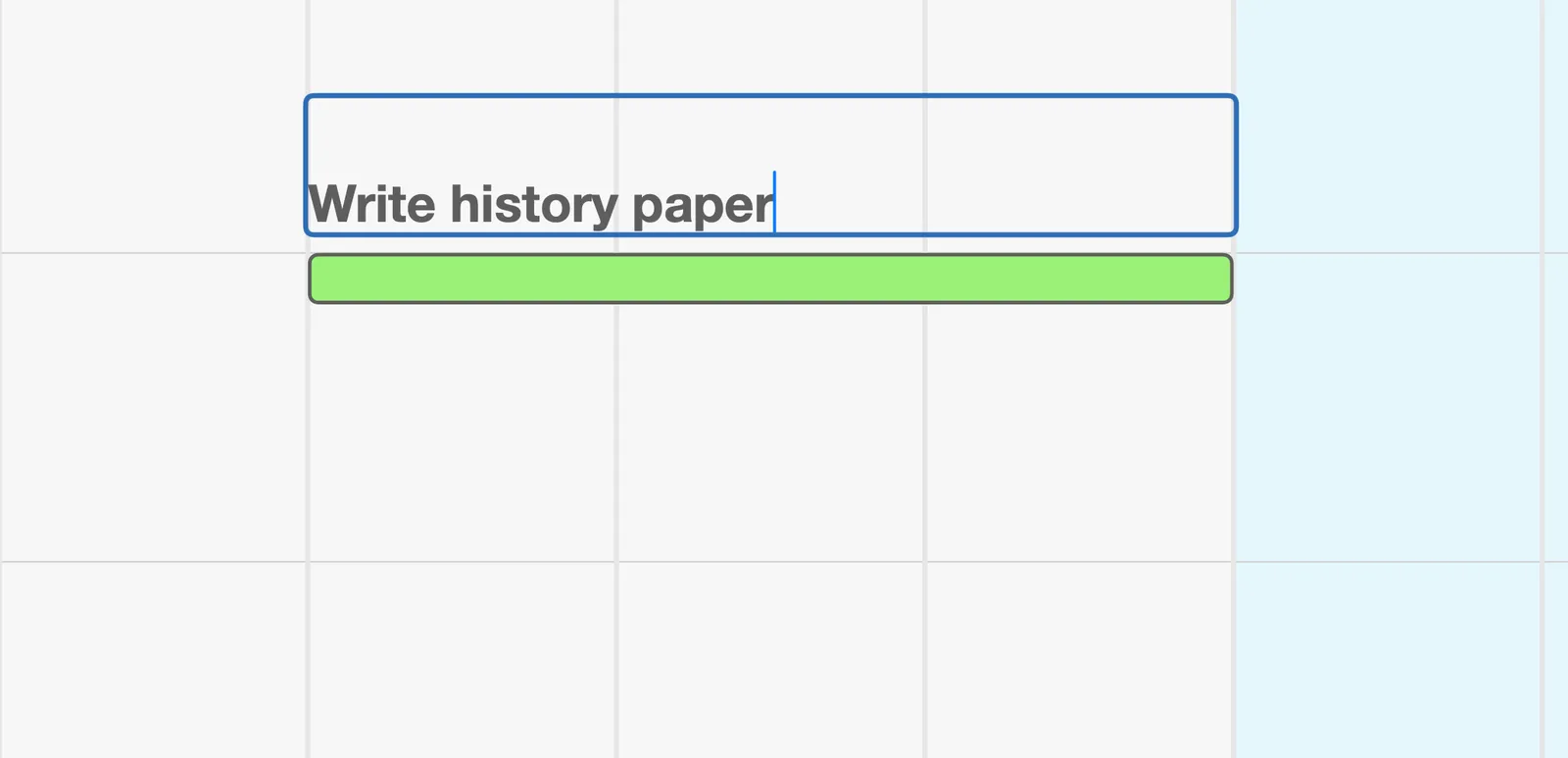
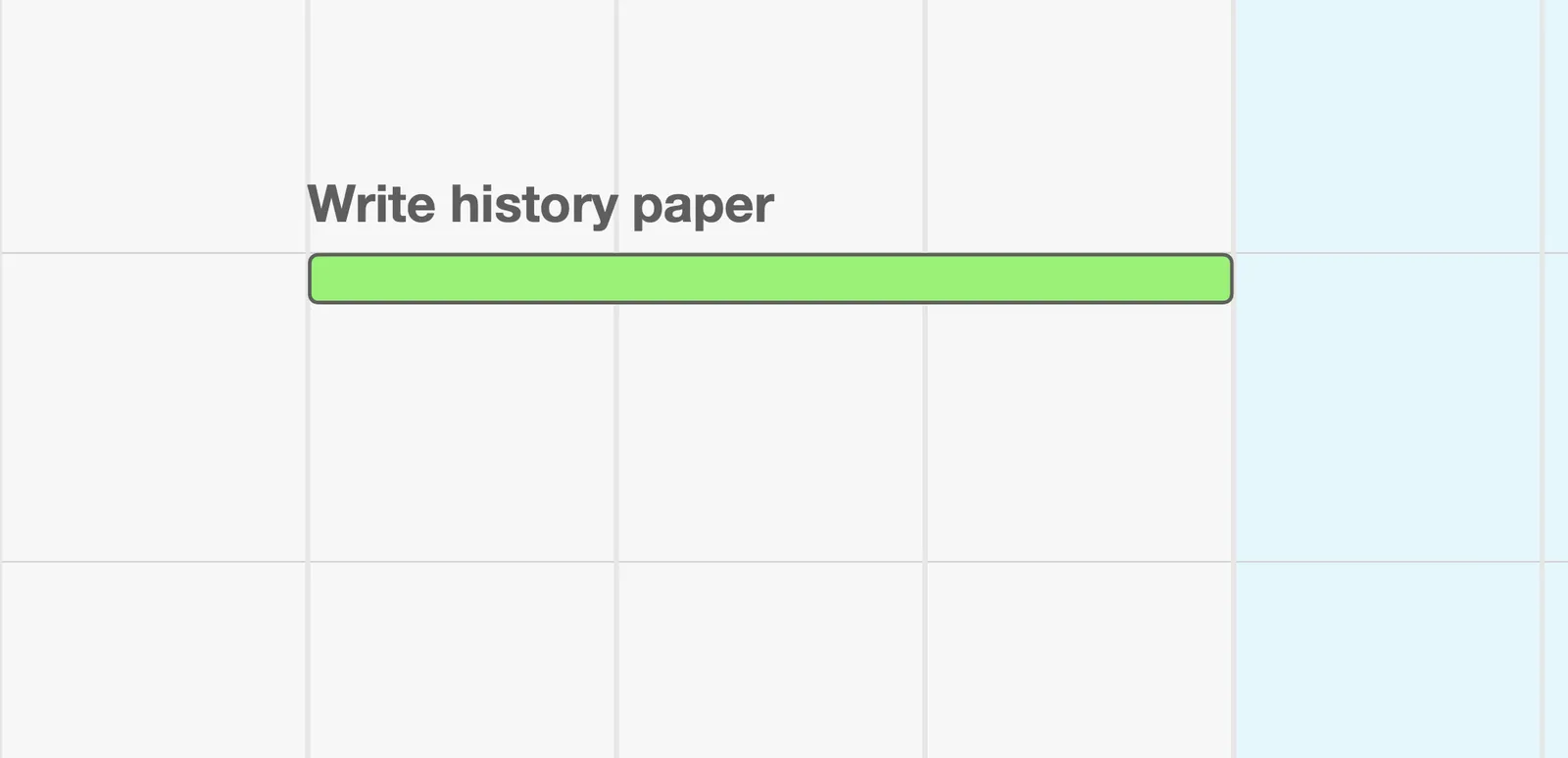
Name it. Double-click the title, type the real name, and press Enter.
When the work comes back
Section titled “When the work comes back”Work that comes back once a week or once a month is usually still a plain Action, repeated. The weekly review, the monthly invoice run: make the first one, then copy it forward with Duplicate (Cmd+D) or Repeat… from the Item menu or the right-click menu. Duplicate places the copy just below the original on the same dates; drag it to where it belongs. Each copy is its own Action with its own status, and the gaps between them stay empty, which is exactly right for work that isn’t daily. (More on that in Repeating Items.)
Action Cluster: the same thing, day after day
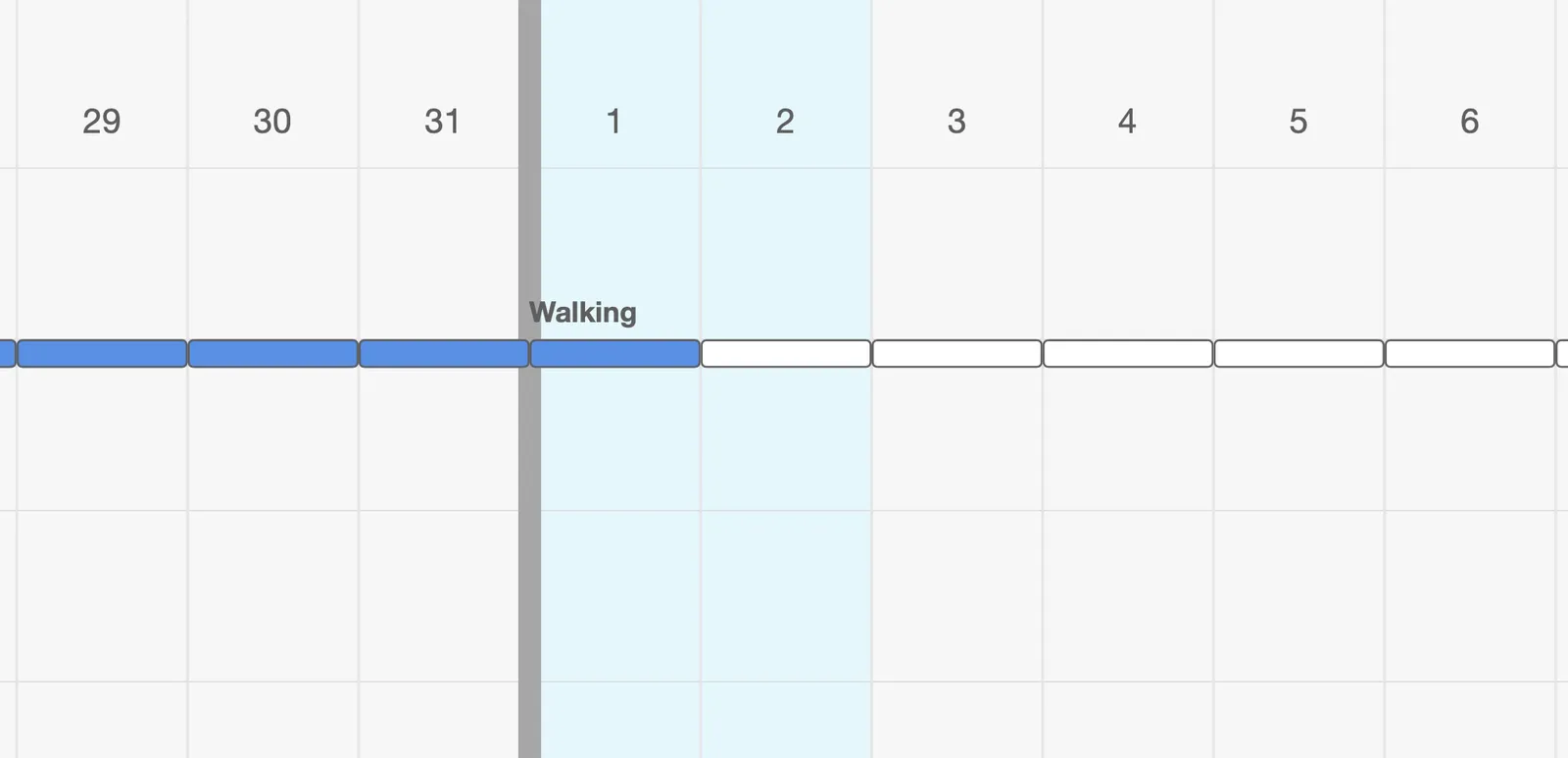
Section titled “Action Cluster: the same thing, day after day”An Action Cluster is one item with a status for every day it spans. The obvious use is a daily habit: morning runs, practice sessions, writing time, medication. Zoom out at the end of a month and the filled days show you how the habit is really going, without opening anything.
But a Cluster isn’t only for habits. If you’ll be doing the same task three days straight, a three-day Cluster is more explicit than a single three-day Action (you can mark Tuesday done and Wednesday not) and more compact than three separate Actions. Whether that’s worth it is personal preference; the Cluster is there when you want it.
Setting statuses. Double-click any single day’s bar to set that day, exactly like a plain Action. For several days at once: double-click a day to select it, shift-click to add more, then set the status once for all of them. One Cmd+Z undoes the whole set. That’s the end-of-week catch-up gesture: select the five days you ran, mark them Completed together.
Changing the length. Right-click the Cluster (or double-click its bar) and choose Change Duration, then drag the circular handle on the right edge of the bar to add or remove days.
Linked Action: connected pieces
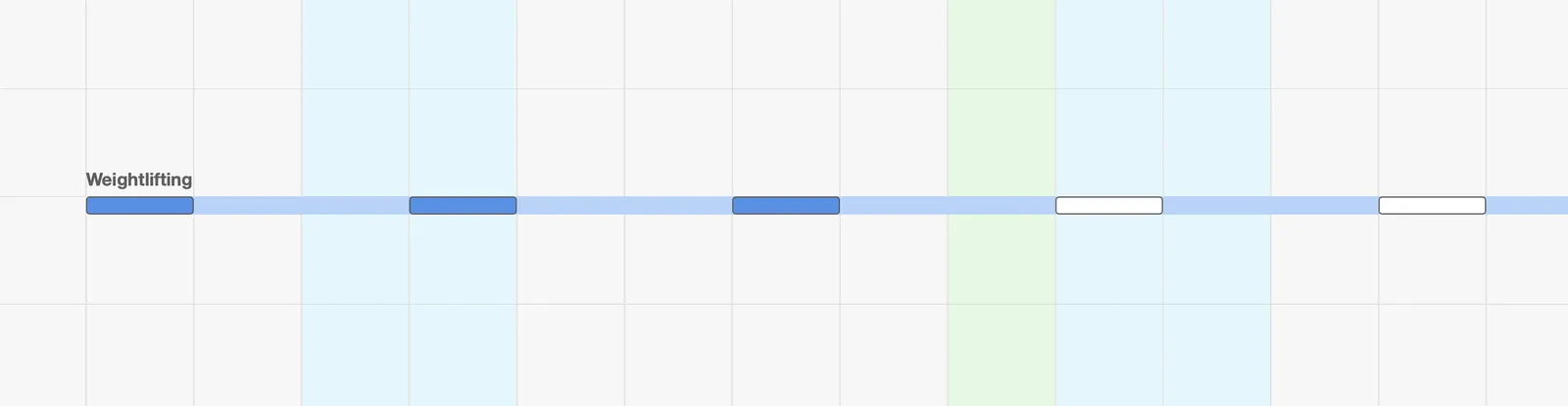
Section titled “Linked Action: connected pieces”A Linked Action is a row of linked units, each with its own status. The units can be the same job repeated (issue 12, issue 13, issue 14) or different jobs in sequence (part 1, part 2, part 3). What the Linked Action emphasizes is the connection: these pieces belong together, and the row shows their progress as one thing.
You could build the same sequence out of separate Actions. A Linked Action is the more compact presentation, and, again, which you prefer is up to you.
Setting statuses. Same gesture as a Cluster: double-click a unit to select it, shift-click to add more, then set them together.
Adding a unit. Double-click the rightmost unit and choose Add Subunit from the popover. The new unit appears at the end of the row and can be dragged to wherever it belongs.
Removing a unit. Double-click the unit and choose Delete from the popover.
Comments
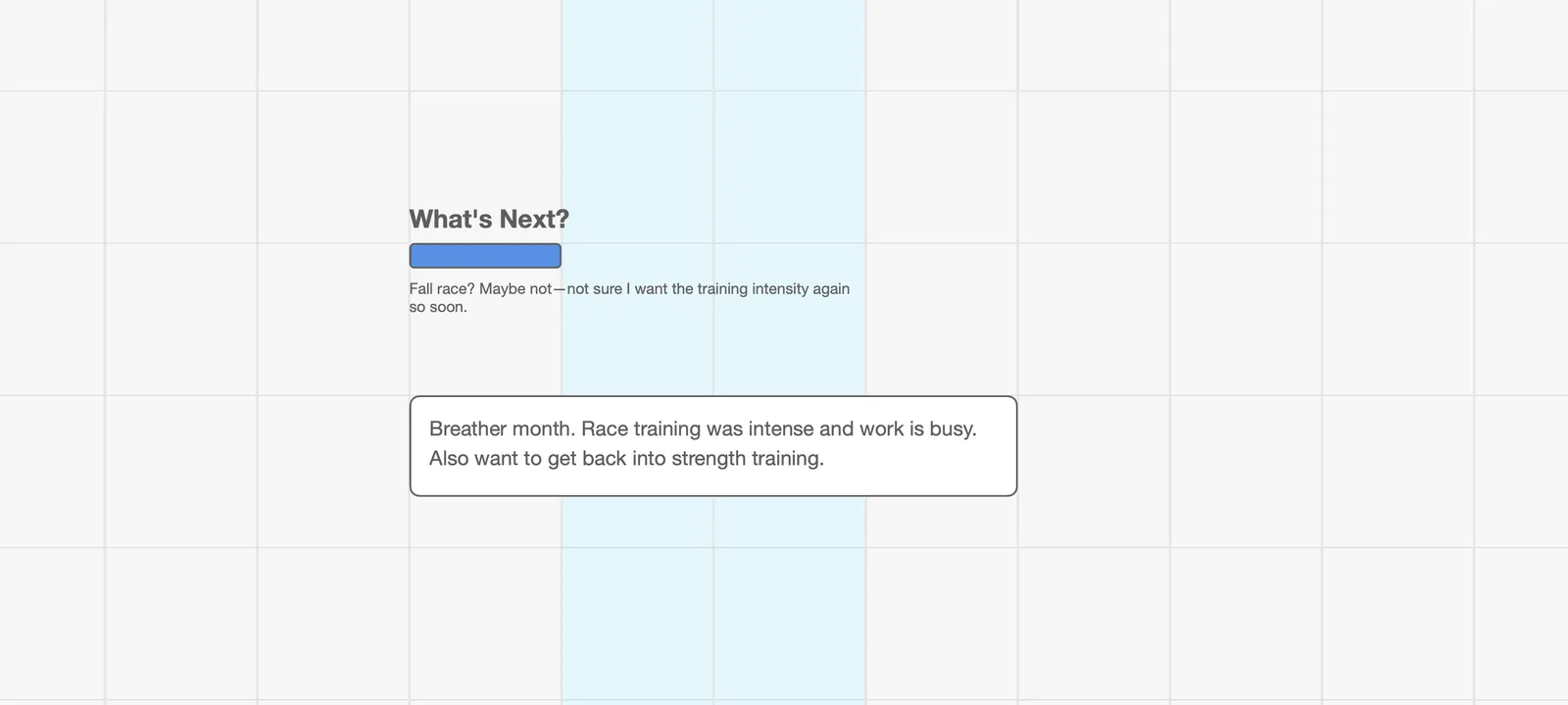
Section titled “Comments”Every Action type has room for a short comment under its bar, up to two lines. It’s the place for a detail that belongs to that piece of work: “taper week,” “waiting on Tarra’s team,” “booked, confirmation in email.”
- Action: double-click just below the bar.
- Action Cluster: one comment for the whole Cluster. Double-click just below its first day.
- Linked Action: each unit has its own comment. Double-click just below the unit.
Type, then press Enter to finish with the comment still selected, or click away to finish and deselect.
For anything longer, or not tied to one piece of work, use a Note instead.
Which one? A few examples
Section titled “Which one? A few examples”| The work | Type | Why |
|---|---|---|
| “Write the launch post” | Action | One span, done when it’s done |
| “Weekly team report” | Action, repeated | One per week; the empty days between are real |
| “Morning run, 5 days a week” | Action Cluster | Same thing daily; every day gets a status |
| “Onboarding, days 1–3” | Action Cluster | Same task three days running, tracked per day |
| “Draft, revise, submit” | Linked Action | Three connected pieces, each with its own status |
| “Newsletter issues 12, 13, 14” | Linked Action | Same job in sequence; you want to see them as one row |
If two rows in that table could describe your work, either type is fine. Build the map the way that looks best to you and fits how you think about the work.
Spans and sequels
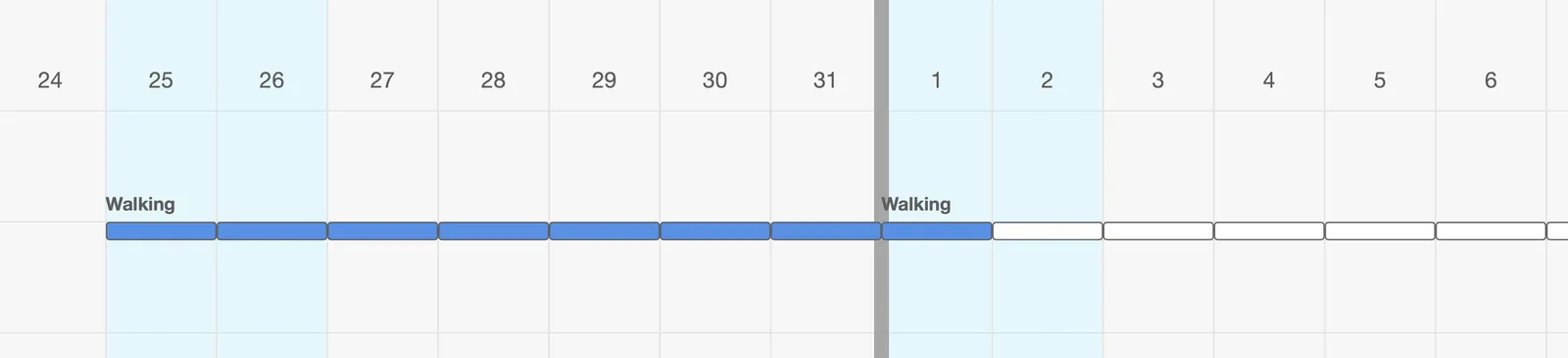
Section titled “Spans and sequels”Clusters and Linked Actions top out at 31 days. The limit keeps each one a manageable size on the map and keeps its title readable across the whole object. For anything longer, make more than one: Duplicate the first (the copy appears just below it, on the same dates) and drag the copy into place after it. If the original sits at the bottom of its container, there’s no room below for the copy and Jupiter will say so; make space in the container first, or create the next one fresh. The seam between them is also a decent moment to ask whether the habit is still earning its place.
Changing your mind
Section titled “Changing your mind”Picked one type and wish you’d picked another? Nothing is locked in. Statuses you’ve set are the only thing a type carries, so the cheap fix is: create the other type alongside, delete the first. For a plain Action that turned into a daily thing, that’s a thirty-second swap. The types exist to serve how the work looks to you, not to be gotten right the first time.