Snapshots
Plans change, and that’s the point. But sometimes you want to keep the version you had: the plan you made in January, the shape of the year before a big replan, the map as it stood the day you started something new.
A snapshot is a saved copy of your whole map at one moment. You keep working on the live map; the snapshot stays exactly as it was.
Taking a snapshot
Section titled “Taking a snapshot”The quickest way is File ▸ Save Snapshot (Shift+Cmd+S). Jupiter saves one right away, named with the date and time.
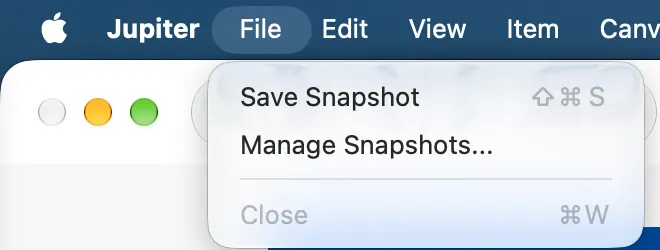
To see your snapshots, click the camera button at the right end of the toolbar, or choose File ▸ Manage Snapshots…. The Snapshots panel opens on the right side of the canvas, with a Save Snapshot button at the top and your snapshots below, newest first.

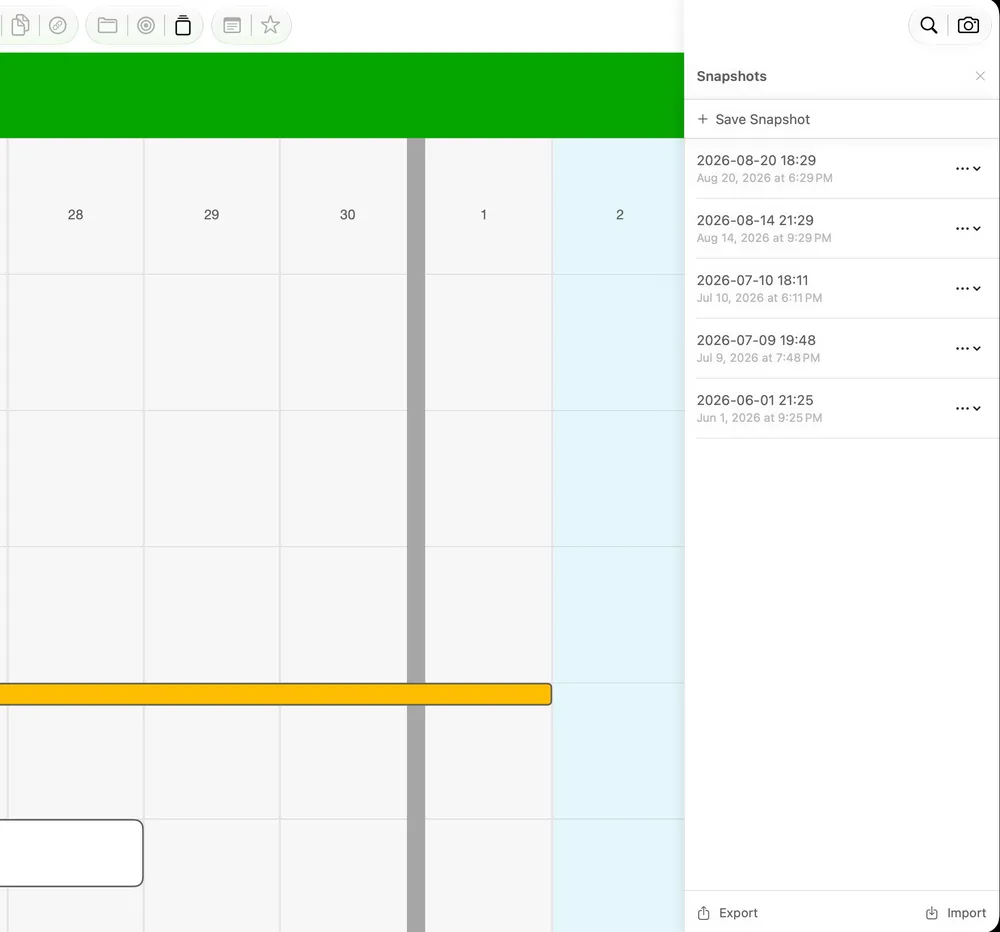
Naming. A new snapshot is named with its date and time, like “2026-10-09 21:27.” To give it a name you’ll recognize later (“Q1 plan,” “Before the move”), double-click the name, type, and press Return.
A snapshot holds your whole map: every Dimension and everything in it, your Vision Boards, your Special Days, and your keyboard shortcuts. You can keep as many as you like.
Going back to a snapshot
Section titled “Going back to a snapshot”Click the ⋯ button on a snapshot’s row and choose Restore….
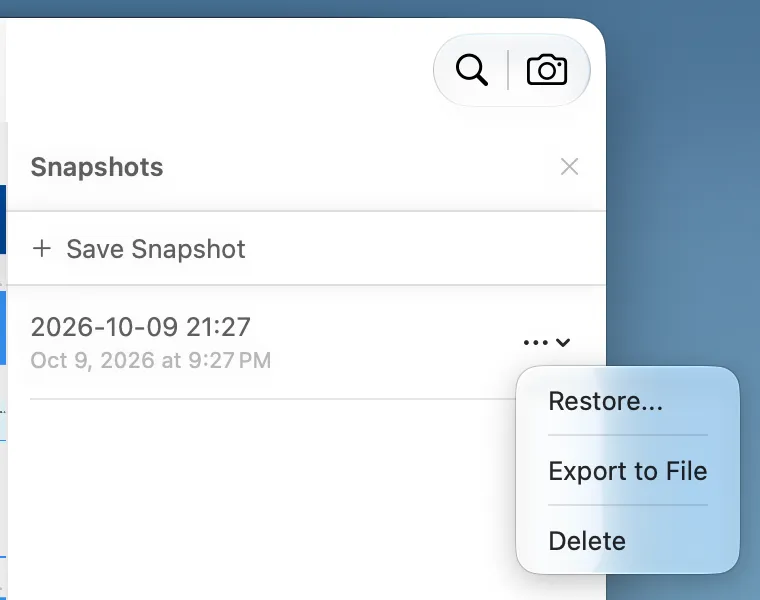
Jupiter asks first, then replaces your map with the snapshot.
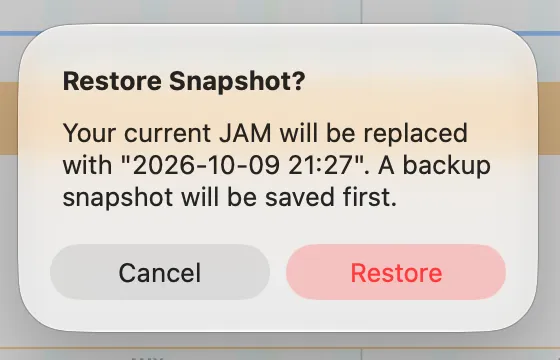
As the confirmation says, before it restores, Jupiter saves one more snapshot of your map as it is right now, named “Before restore” with the date and time. That snapshot is your way back: a restore can’t be undone with Cmd+Z, so if you change your mind, restore the “Before restore” one.
A few things come back slightly differently:
- Keyboard shortcuts return to what they were when the snapshot was taken, so any you’ve changed since will change back.
- Vision Board images come back as slightly compressed copies of the originals.
- Special Day types that no Special Day was using aren’t kept.
Exporting and removing
Section titled “Exporting and removing”From the same ⋯ menu, Export to File saves a copy of the snapshot as a file, and Delete removes the snapshot. Delete doesn’t ask first, and your live map isn’t affected.
When to take one
Section titled “When to take one”- At the end of each quarter, before you plan the next. Over a year, they add up to a record of how your plans changed, and why.
- Before a big replan. Tear the map up with confidence; the old version is one restore away.
- When you finish something big. A snapshot of the map on launch day, race day, or moving day is a nice thing to have.
A snapshot isn’t a backup
Section titled “A snapshot isn’t a backup”Snapshots live inside Jupiter, alongside your map. They protect you from your own changes, not from losing your Mac. For that, back up your Mac with Time Machine (or another backup tool), which keeps a copy of Jupiter’s data, snapshots included. Exporting a snapshot to a file you keep somewhere safe is a good extra step for a version that matters.
Try it
Section titled “Try it”Press Shift+Cmd+S now, then rename the snapshot “Baseline” with today’s date. In three months, restore it for a look at where you started, then restore the “Before restore” snapshot to come back. That comparison is one of the most honest looks at your own year you’ll ever get.
Next: Themes and Appearance →